How to turn on Silent Mode on an Apple Watch
2 min read · 3 steps · Updated 4 October 2026
On the watch, open Settings, scroll down, tap Sounds & Haptics and switch on Silent Mode. The quicker way: press the side button to open Control Center and tap the Silent Mode button. The watch still taps your wrist for notifications.
- Device
- Apple Watch
- Shown on
- watchOS 26 (Apple Watch)
- App
- Settings
- Path
- Settings › Sounds & Haptics
- Real screenshots
- 3 of 3 steps
- Checked
- October 2026
- Sources
- 1 official, linked below
In Silent Mode the watch makes no sound for calls and alerts, but you can still receive haptic notifications, the taps on your wrist. One exception is written on the watch itself: Silent Mode will not silence alarms and timers when the Apple Watch is charging.
The screenshots show watchOS 26.5 on an Apple Watch Series 11.
Step by step

Open Settings on the watch
Press the Digital Crown to see your apps and tap the Settings gear.
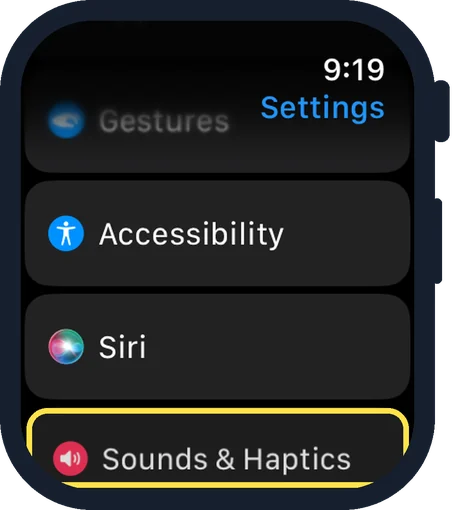
Scroll down and tap Sounds & Haptics
It is below Accessibility and Siri.
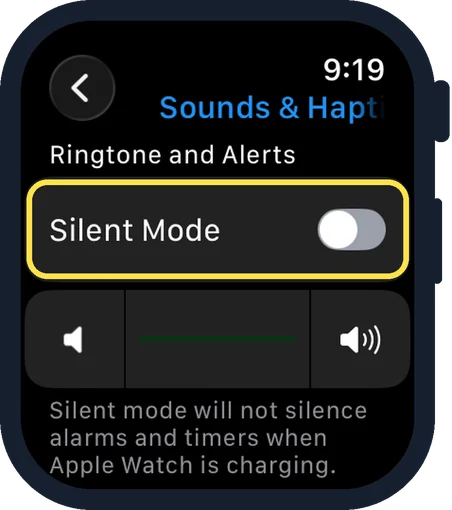
Switch on Silent Mode
It is the first switch, under Ringtone and Alerts. In the picture it is off.
Good to know
From Control Center: press the side button, then tap the Silent Mode button.
To silence one alert while it sounds, Apple gives this gesture: rest your palm on the display for at least three seconds or until you feel a tap. It needs Cover to Mute switched on under Settings, Gestures.
To also stop the screen lighting up, use Do Not Disturb in Control Center. It keeps calls and alerts, except alarms, from sounding or lighting up the screen.
In short: Settings, Sounds & Haptics, Silent Mode on. Or: side button, Silent Mode button.
Links checked on 3 October 2026. Rules and prices change. Check the official source before you act.