How to make text bigger on an Apple Watch
2 min read · 4 steps · Updated 4 October 2026
On the watch, open Settings, tap Display & Brightness, then Text Size, and tap the large letters at the right or turn the Digital Crown. Apps that support Dynamic Type then use your preferred reading size.
- Device
- Apple Watch
- Shown on
- watchOS 26 (Apple Watch)
- App
- Settings
- Path
- Settings › Display & Brightness › Text Size
- Real screenshots
- 4 of 4 steps
- Checked
- October 2026
- Sources
- 1 official, linked below
The text on a watch is small by nature. One slider makes it larger in every app that supports Dynamic Type, Apple's name for adjustable text. The same slider can also be reached from Control Center.
The screenshots show watchOS 26.5 on an Apple Watch Series 11.
Step by step
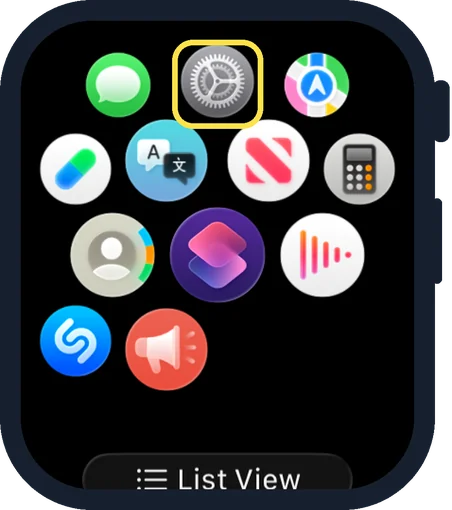
Open Settings on the watch
Press the Digital Crown to see your apps and tap the Settings gear.
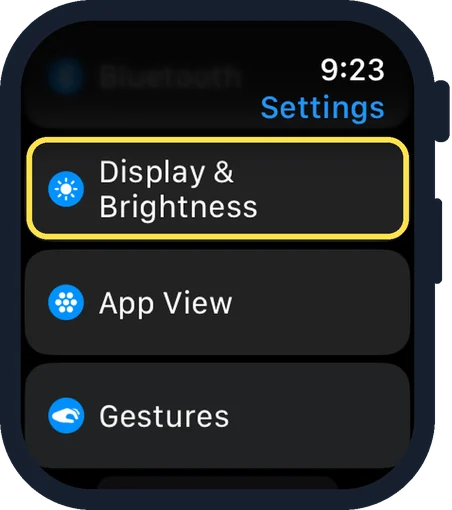
Scroll down and tap Display & Brightness
It is below Bluetooth and above App View.
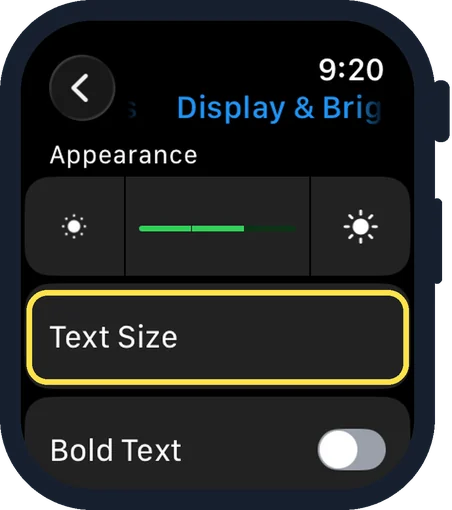
Tap Text Size
It is under the brightness slider, in the Appearance group.
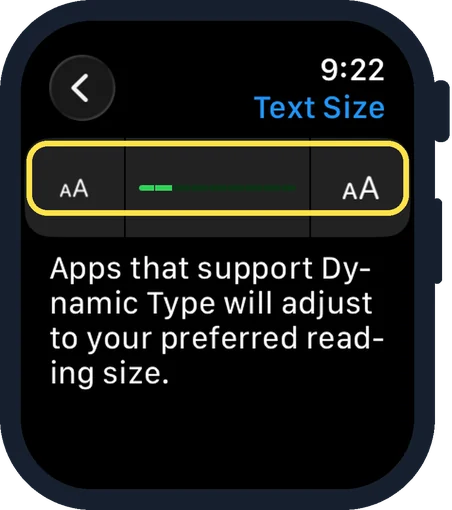
Make the text larger
Tap the large letters on the right to go up a step and the small letters on the left to go down. The note below says: apps that support Dynamic Type will adjust to your preferred reading size.
Good to know
Apple's quicker way: press the side button to open Control Center, tap the text size button, then turn the Digital Crown.
The setting is also in the Accessibility page of the watch Settings, and in the Apple Watch app on the iPhone under My Watch, Accessibility.
For heavier letters as well: how to turn on bold text on an Apple Watch.
In short: Settings, Display & Brightness, Text Size, tap the large letters.
Links checked on 3 October 2026. Rules and prices change. Check the official source before you act.