How to turn on bold text on an Apple Watch
2 min read · 3 steps · Updated 4 October 2026
On the watch, open Settings, tap Display & Brightness and switch on Bold Text. Apple notes that the watch has to restart for the change to take effect.
- Device
- Apple Watch
- Shown on
- watchOS 26 (Apple Watch)
- App
- Settings
- Path
- Settings › Display & Brightness
- Real screenshots
- 3 of 3 steps
- Checked
- October 2026
- Sources
- 1 official, linked below
Bold Text makes text appear bolder and more prominent, in Apple's words. It helps when the thin letters of the watch are hard to read in daylight or without glasses.
The screenshots show watchOS 26.5 on an Apple Watch Series 11.
Step by step
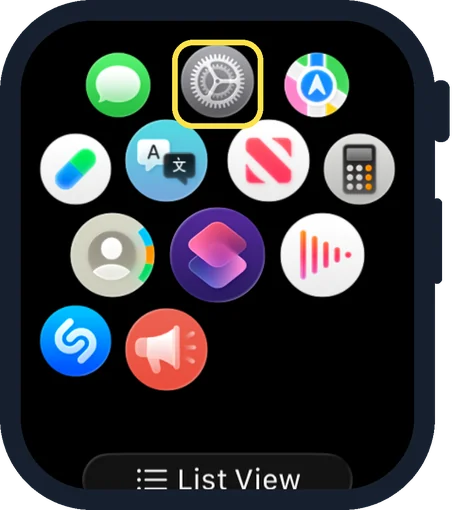
Open Settings on the watch
Press the Digital Crown to see your apps and tap the Settings gear.
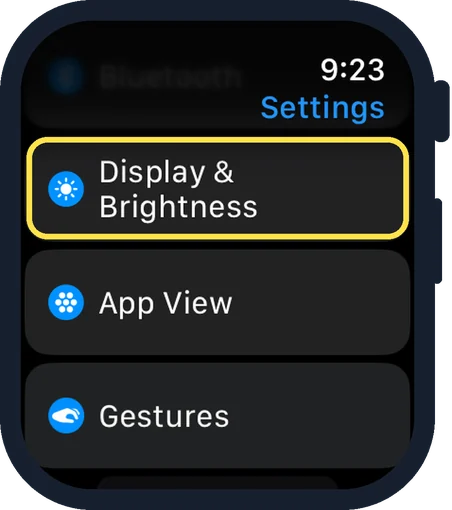
Scroll down and tap Display & Brightness
It is below Bluetooth and above App View.
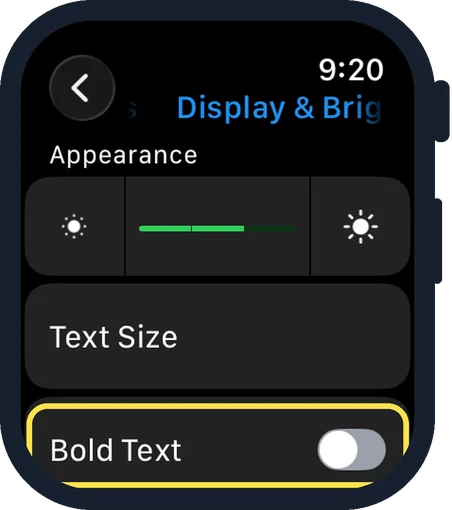
Switch on Bold Text
It is the row below Text Size. In the picture it is off.
Good to know
Restart the Apple Watch so that bold text takes effect: how to restart or force restart an Apple Watch.
The same switch is on the Accessibility page of the watch Settings and in the Apple Watch app on the iPhone, under My Watch, Accessibility.
Larger letters: how to make text bigger on an Apple Watch.
In short: Settings, Display & Brightness, Bold Text on, then restart the watch.
Links checked on 3 October 2026. Rules and prices change. Check the official source before you act.