How to show Apple Watch apps as a list
2 min read · 3 steps · Updated 4 October 2026
Press the Digital Crown to see your apps, scroll to the bottom and tap List View. The apps then appear as a list in alphabetical order. The same choice is in Settings under App View.
- Device
- Apple Watch
- Shown on
- watchOS 26 (Apple Watch)
- App
- Settings
- Real screenshots
- 3 of 3 steps
- Checked
- October 2026
- Sources
- 1 official, linked below
The Apple Watch shows its apps as a grid of round icons without names. If you find it hard to hit the right one, switch to the list: every app with its name, in alphabetical order.
The screenshots show watchOS 26.5 on an Apple Watch Series 11.
Step by step
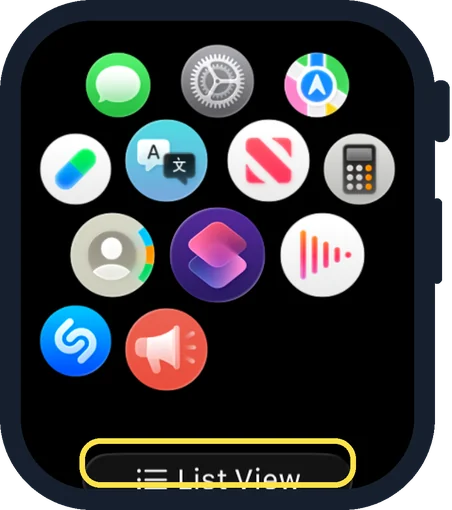
Press the Digital Crown and scroll to the bottom
The app grid opens. Turn the Digital Crown to see all your apps. At the bottom there is a button called List View. Tap it.
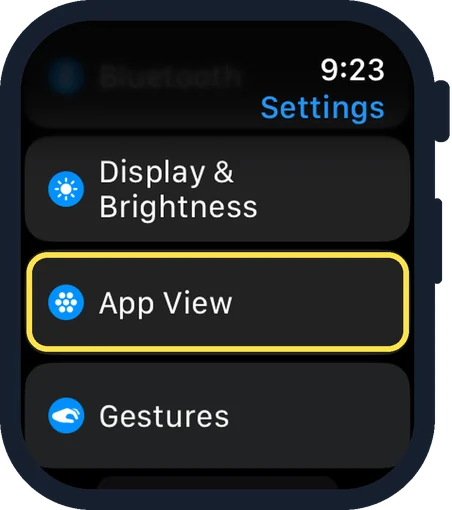
Or open Settings and tap App View
In Settings, App View is below Display & Brightness.
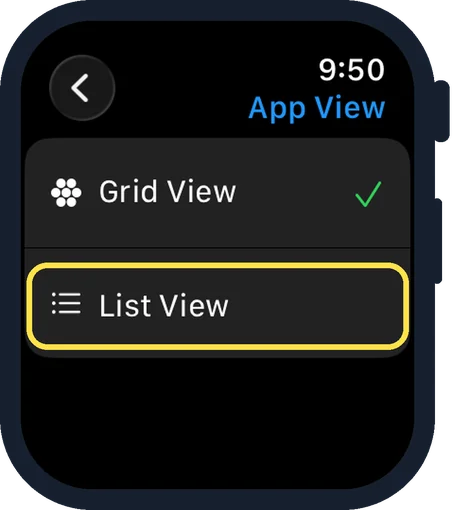
Tap List View
The tick shows the active view. In the picture that is Grid View.
Good to know
To go back, scroll to the bottom of the list and choose Grid View, or use the same page in Settings.
In grid view you can arrange the icons yourself: touch and hold an app, then drag it to a new place.
In short: Digital Crown, scroll to the bottom, List View. Or: Settings, App View, List View.
Links checked on 3 October 2026. Rules and prices change. Check the official source before you act.