How to turn multitasking gestures on or off on an iPad
2 min read · 6 steps · Updated 4 October 2026
Open Settings, tap Multitasking & Gestures and scroll to Gestures. Four switches control them: Four & Five Finger App Switching, Productivity Gestures, Shake to Undo and Swipe Finger from Corner. Each switch lists its gestures right below it.
- Device
- iPad
- Shown on
- iPadOS 26.5 (iPad A16)
- App
- Settings
- Path
- Settings › Multitasking & Gestures › Gestures: four switches
- Real screenshots
- 6 of 6 steps
- Checked
- October 2026
- Sources
- 1 official, linked below
An iPad reacts to gestures with three, four or five fingers. They are handy with practice and a nuisance when they fire by accident, for example when a child plays a game or you draw with your hand resting on the screen. Every group can be switched off on its own.
The screenshots show iPadOS 26.5 on an iPad (A16), held upright. In landscape the same rows sit in the same order.
Step by step
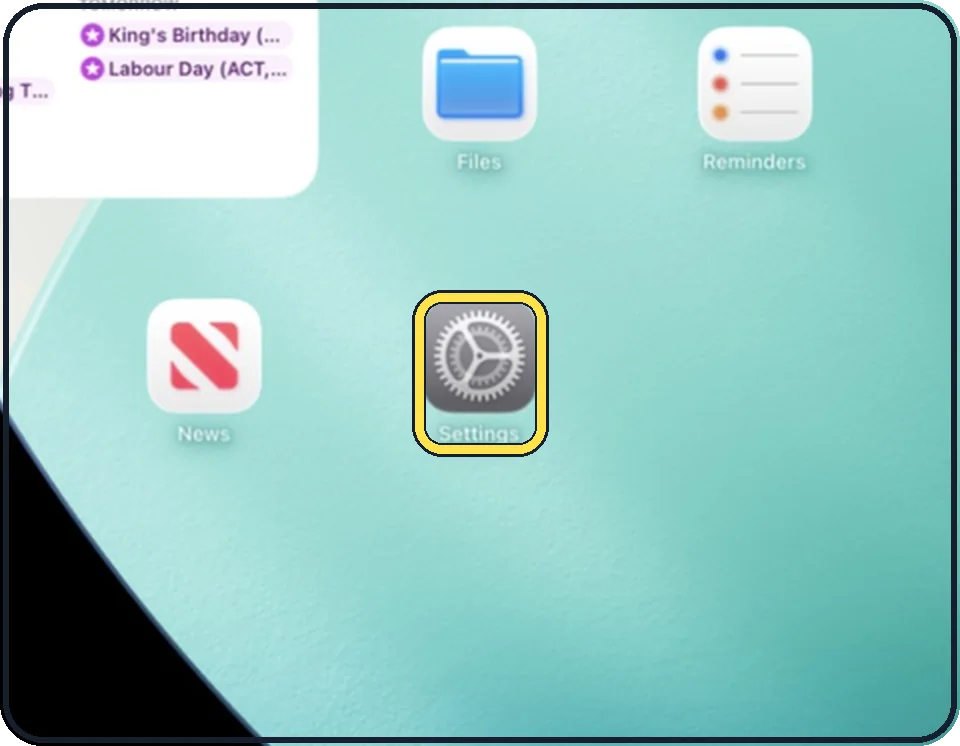
Open Settings
Tap the grey gear icon on the Home Screen. In the picture it is in the second row; it also sits in the Dock at the bottom.
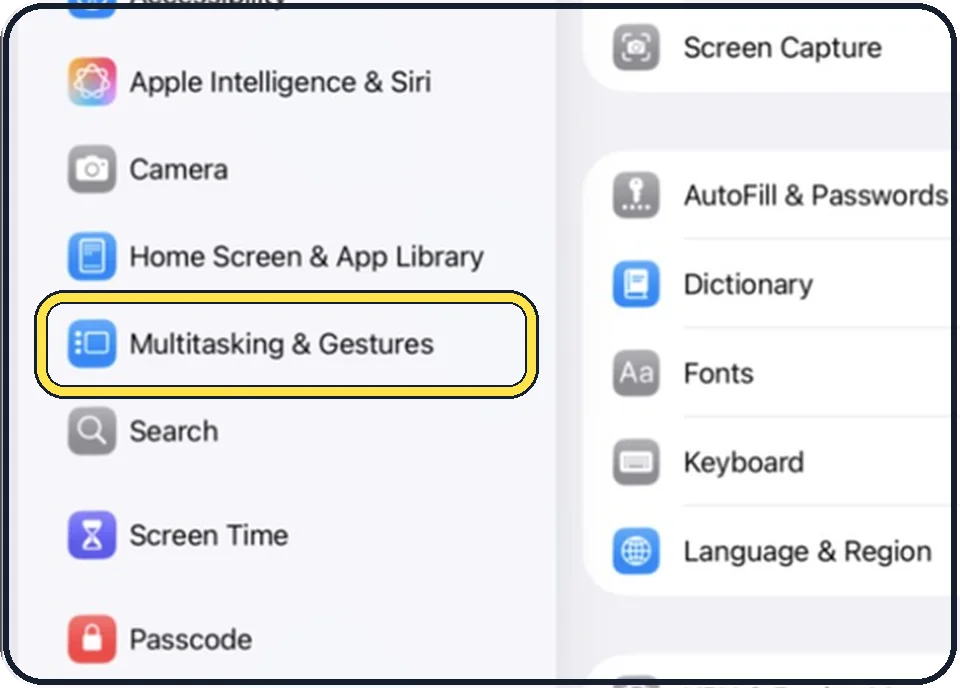
Tap Multitasking & Gestures
It is in the list on the left, below Home Screen & App Library.
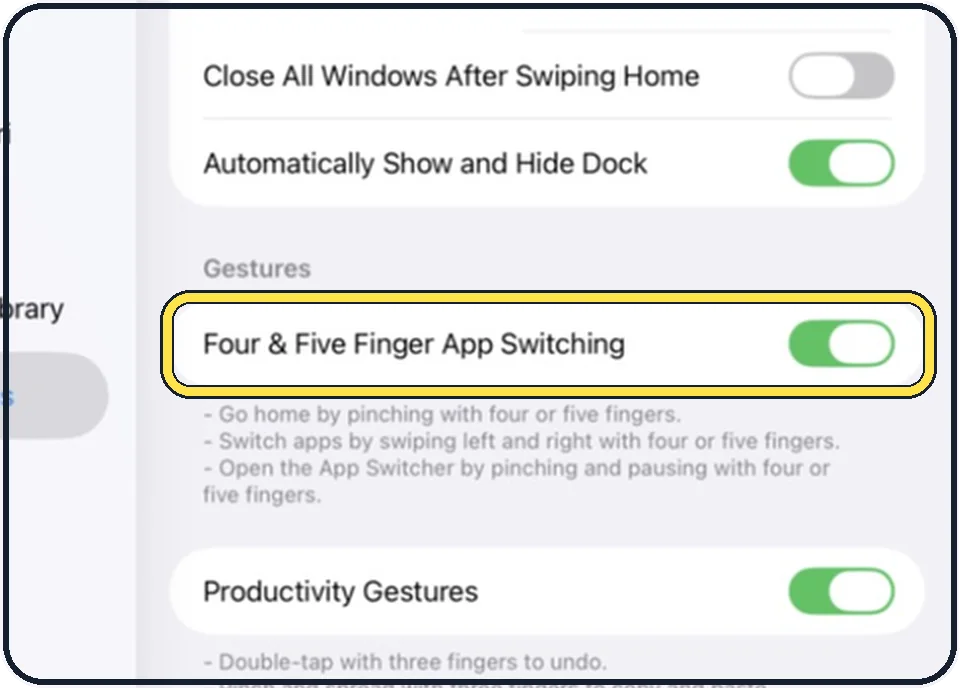
Scroll to Gestures and look at Four & Five Finger App Switching
The page lists what this switch covers: pinch with four or five fingers to go Home, swipe left and right with four or five fingers to switch apps, and pinch and pause to open the App Switcher.
Switch it off if apps close or change while you draw or play.
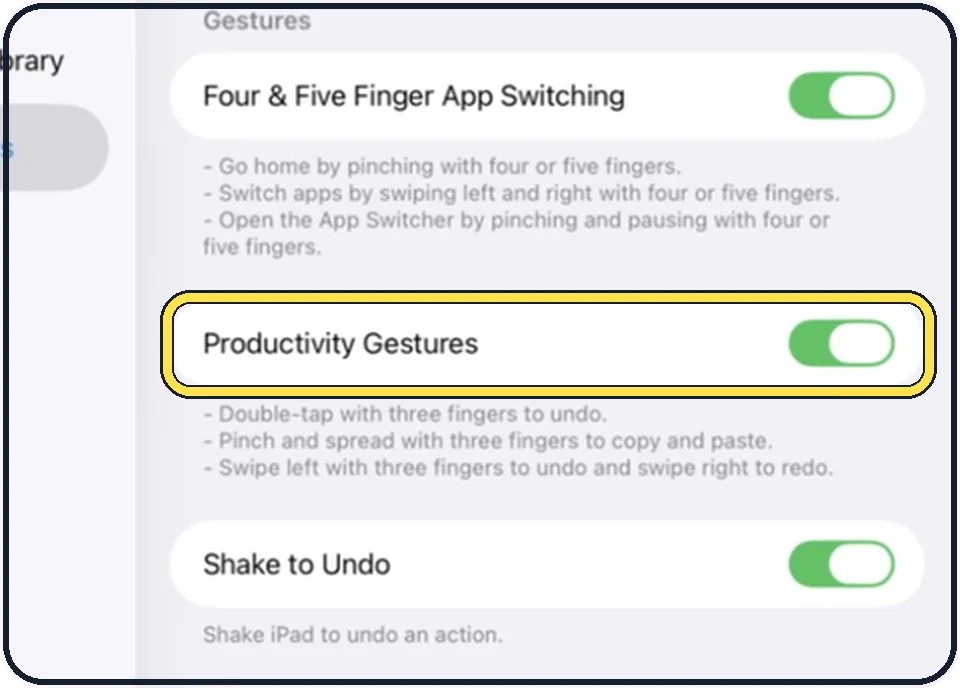
Decide about Productivity Gestures
These are the three-finger gestures: double-tap to undo, pinch and spread to copy and paste, swipe left to undo and swipe right to redo.
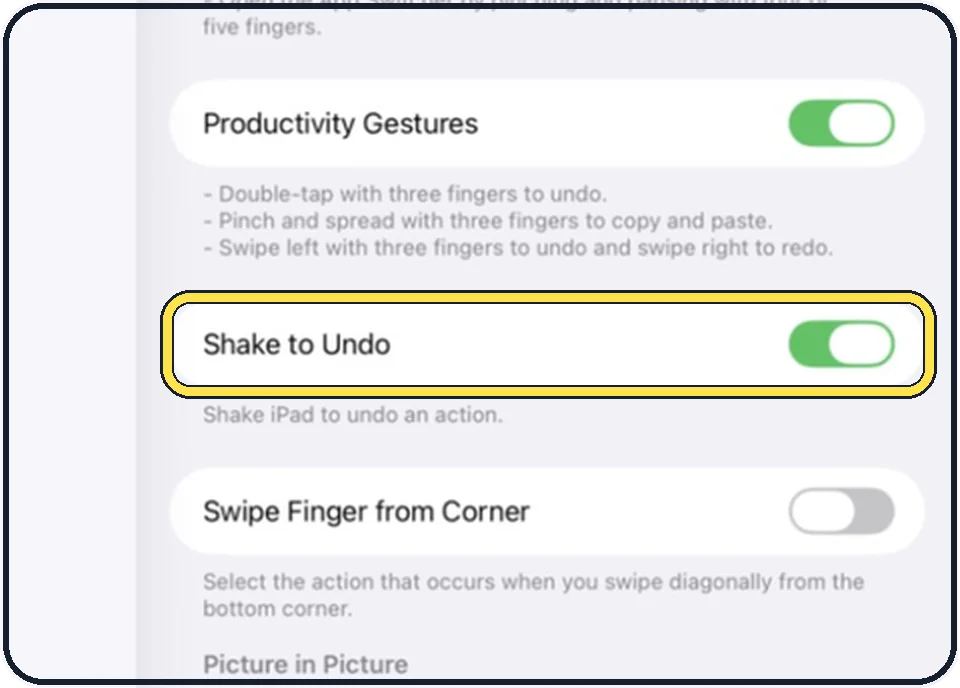
Decide about Shake to Undo
With it on, shaking the iPad undoes the last action. Switch it off if the Undo question appears when you only moved the iPad.
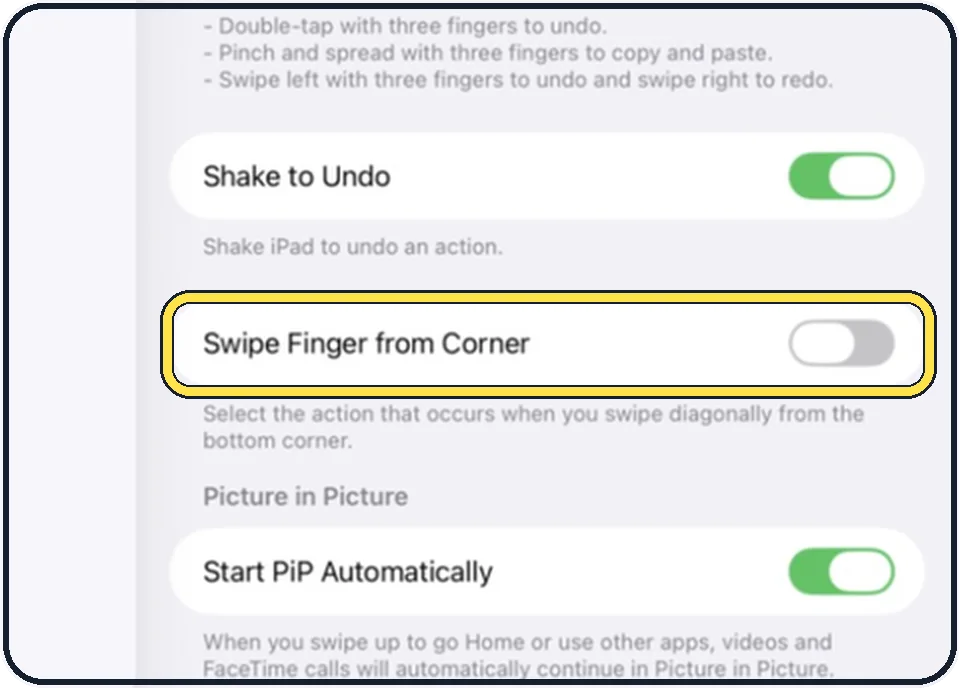
Look at Swipe Finger from Corner
It is off in the picture. When it is on, you choose what a diagonal swipe from a bottom corner does.
Good to know
The basic one-finger gestures cannot be switched off: swipe up from the bottom edge to go Home, swipe down from the top-right corner for Control Center, and swipe up and pause to see all open apps.
The modes at the top of the same page decide how apps share the screen: how to switch between Windowed Apps and Stage Manager on an iPad.
In short: Settings, Multitasking & Gestures, Gestures: four switches, each with its gestures listed below.
Links checked on 3 October 2026. Rules and prices change. Check the official source before you act.