How to turn on subtitles automatically on an iPad
By Saadat Rafiq · 2 min read · 5 steps · Updated 4 October 2026
Open Settings, tap Accessibility and tap Subtitles & Captioning. Under Automatic Subtitles, three switches show subtitles by themselves: when the video language is not your iPad language, when the sound is muted, and for a moment after you skip back.
- Device
- iPad
- Shown on
- iPadOS 26.5 (iPad A16)
- App
- Settings
- Path
- Settings › Accessibility › Subtitles & Captioning › Automatic Subtitles
- Real screenshots
- 5 of 5 steps
- Checked
- October 2026
- Sources
- 1 official, linked below
Subtitles in video apps can be switched on by hand every time, or the iPad can show them exactly when they help. The page also has a switch for people who prefer captions made for the deaf and hard of hearing, and a place to change how subtitles look.
The screenshots show iPadOS 26.5 on an iPad (A16), held upright. In landscape the same rows sit in the same order.
Step by step
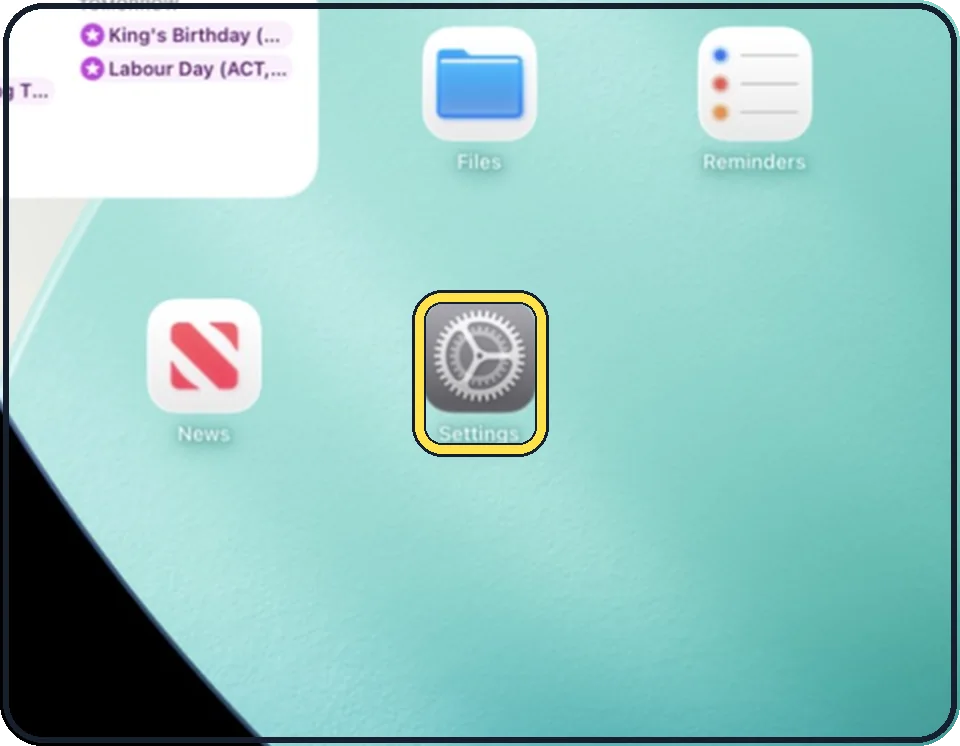
Open Settings
Tap the grey gear icon on the Home Screen. In the picture it is in the second row; it also sits in the Dock at the bottom.
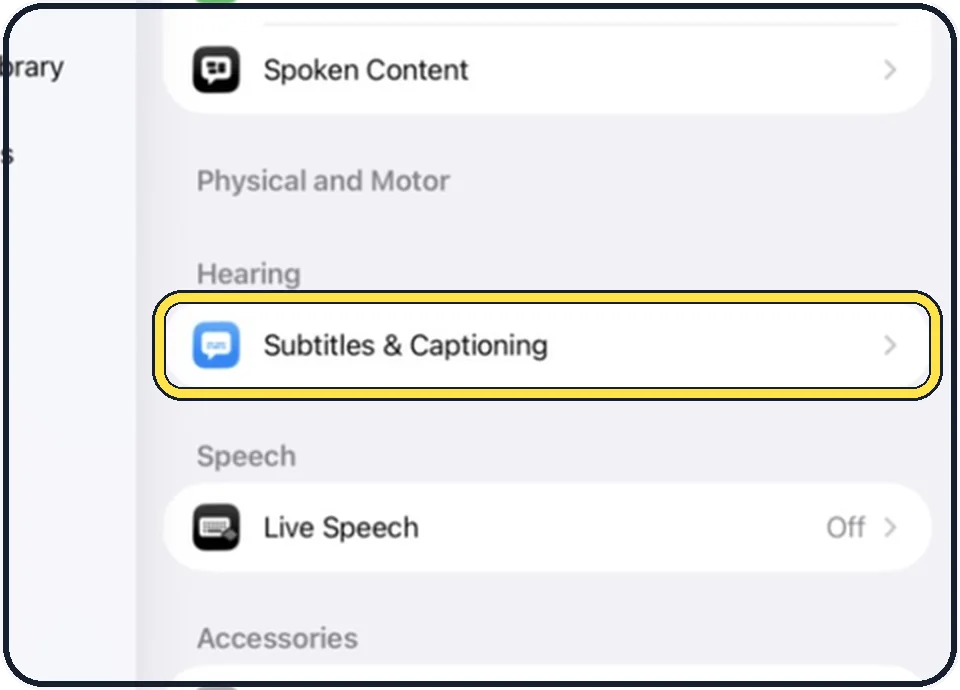
Tap Accessibility, then Subtitles & Captioning
Accessibility is the second entry in the list on the left. Subtitles & Captioning is in the Hearing group on the right.
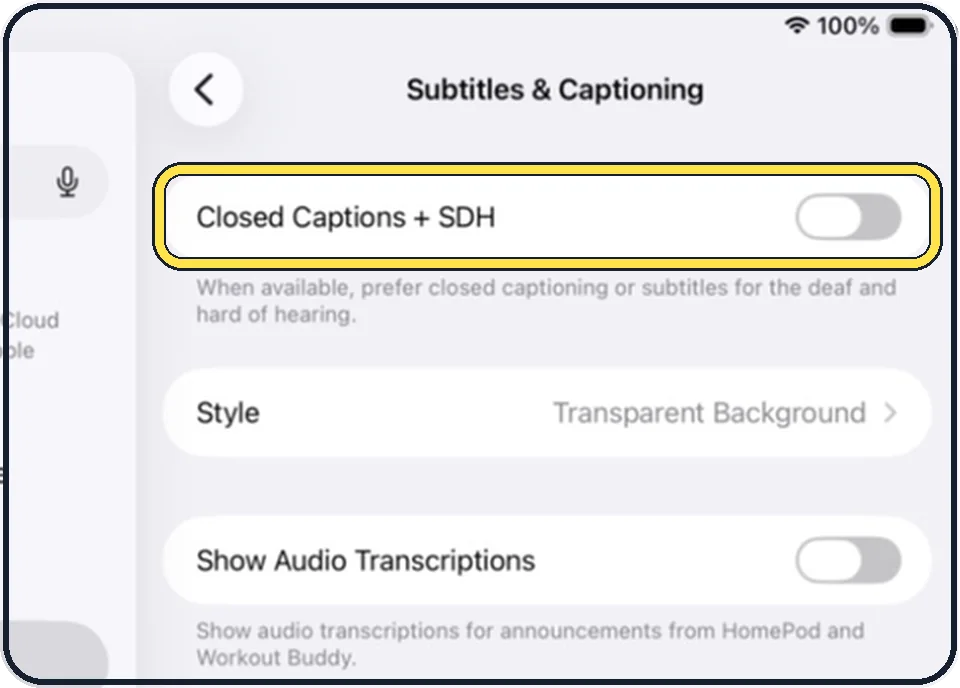
Switch on Closed Captions + SDH if you prefer them
When a video offers them, the iPad then prefers closed captions or subtitles for the deaf and hard of hearing. These also describe sounds.
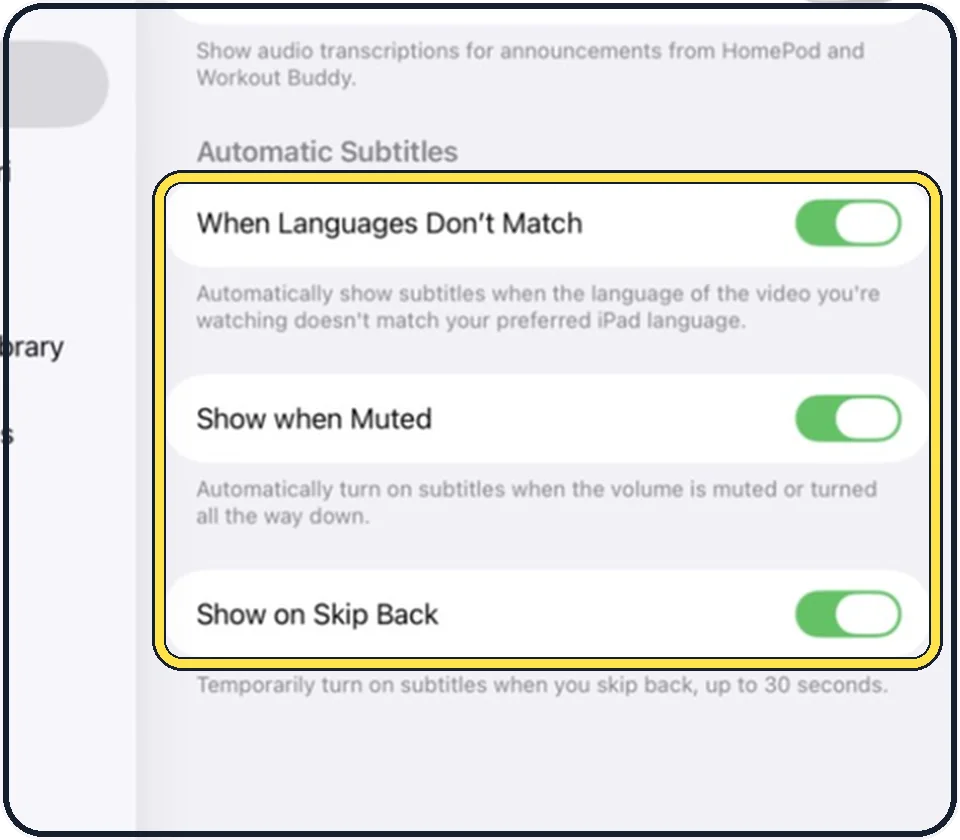
Set the three automatic switches
When Languages Don't Match: subtitles appear when the language of the video is not your preferred iPad language.
Show when Muted: subtitles appear when the volume is muted or turned all the way down.
Show on Skip Back: subtitles appear for a short time when you skip back, up to 30 seconds.
All three are on in the picture.
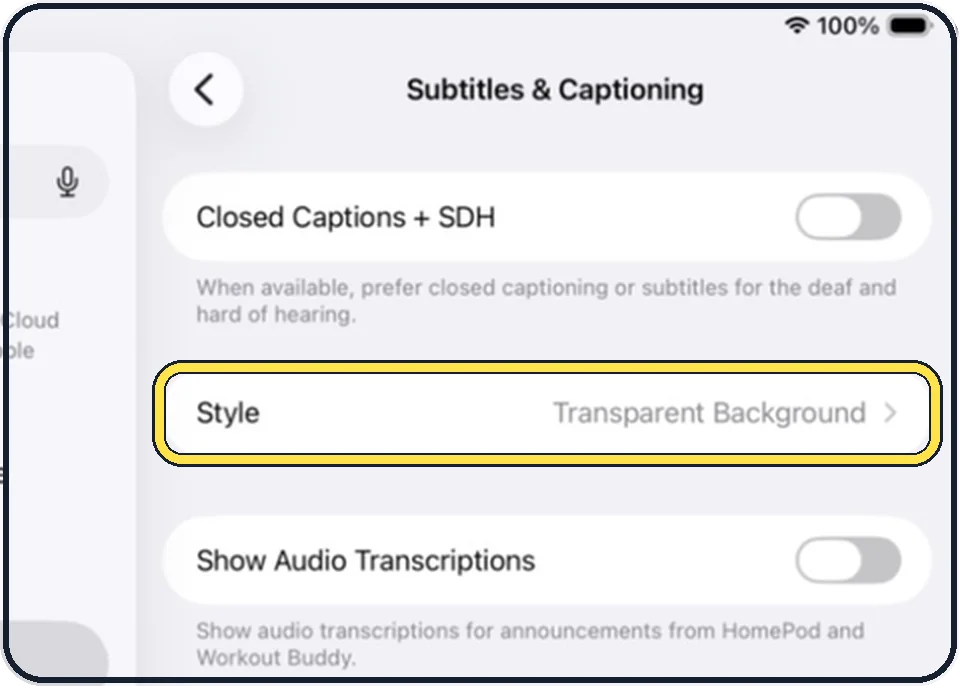
Change how subtitles look
Tap Style and pick one of the ready styles, or create your own with font, size, colour and background.
Good to know
While a video plays in a supported app, you can also switch subtitles on by hand: tap the subtitles button in the player and choose from the list.
In short: Settings, Accessibility, Subtitles & Captioning, Automatic Subtitles.
Links checked on 3 October 2026. Rules and prices change. Check the official source before you act.