How to turn off the Always On display on an Apple Watch
2 min read · 4 steps · Updated 2 October 2026
On the watch, open Settings, tap Display & Brightness, tap Always On and switch it off. The screen then goes dark when you lower your wrist, which saves battery.
With Always On, the watch keeps showing the time in a dimmed form when your wrist is down. Apple Watch Series 5 and later, Apple Watch SE 3 and every Apple Watch Ultra have it. Turning it off makes the battery last longer and hides the screen from the people around you.
These steps are for recent versions of watchOS. The pictures are either our own screenshots from Apple's watchOS 26 simulator or simplified diagrams of the watch screen.
Step by step
Open Settings on the watch
Press the Digital Crown to see your apps and tap the Settings gear.
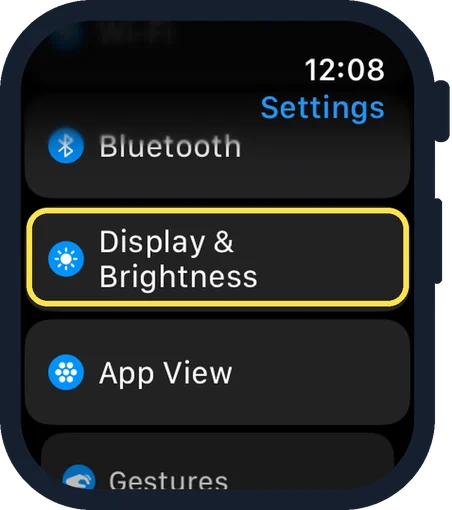
Tap Display & Brightness
Scroll down a little to find it.
Tap Always On
It is below the brightness slider.
Switch Always On off
From now on the screen is dark when your wrist is down. Raise your wrist or tap the screen to wake it.
Good to know
If you want to keep Always On but show less, leave it on and use the choices below the switch: Show Complication Data, Show Live Activities, Show Notifications and Show Apps.
Always On is switched off automatically in Low Power Mode and in Theatre Mode.
More ways to save energy: how to make an Apple Watch battery last longer.
In short: Watch: Settings, Display & Brightness, Always On, off.
- Apple Support: Use the Always On feature with your Apple Watch
Rules and prices change. Check the official source before you act.