How to stop music and timers taking over the Apple Watch screen
2 min read · 6 steps · Updated 4 October 2026
On the watch, open Settings, tap Smart Stack, then Live Activities, and switch off Auto-Launch Live Activities. To get rid of them completely, switch off Allow Live Activities. Live Activities are app activities in progress, such as a workout, a timer or music.
- Device
- Apple Watch
- Shown on
- watchOS 26 (Apple Watch)
- App
- Settings
- Path
- Settings › Smart Stack › Live Activities
- Real screenshots
- 6 of 6 steps
- Checked
- October 2026
- Sources
- 1 official, linked below
Live Activities are, in Apple's words, app activities in progress such as a workout, a timer or music. They appear on the watch face and at the top of the Smart Stack, so the watch may show them when you only wanted the time. Two switches decide whether they open by themselves.
The screenshots show watchOS 26.5 on an Apple Watch Series 11.
Step by step
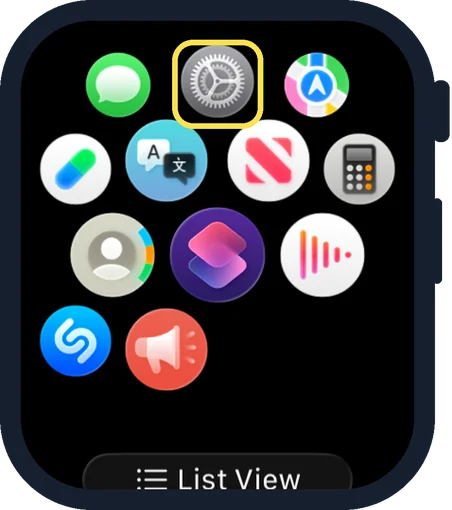
Open Settings on the watch
Press the Digital Crown to see your apps and tap the Settings gear.
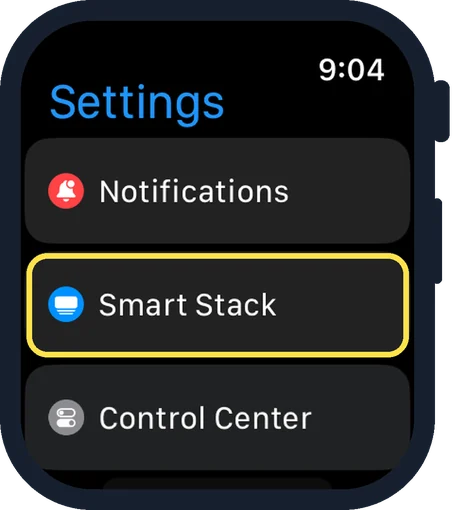
Tap Smart Stack
It is the second row of Settings, below Notifications.
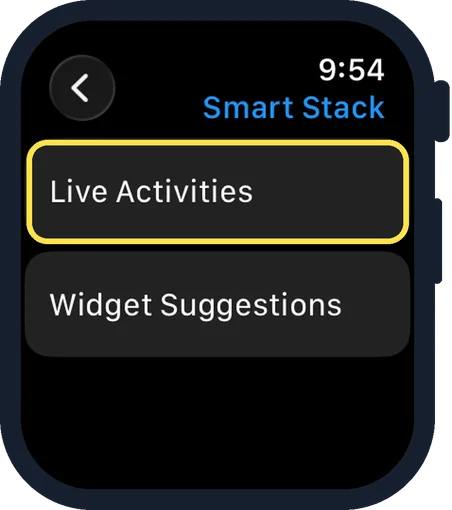
Tap Live Activities
It is the first of two rows.
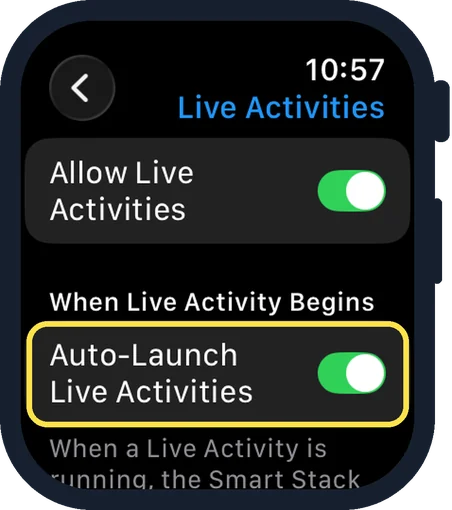
Switch off Auto-Launch Live Activities
It is under the heading When Live Activity Begins and is on in the picture. The note below says that when a Live Activity is running, the Smart Stack will remain pulled up when your wrist is down.
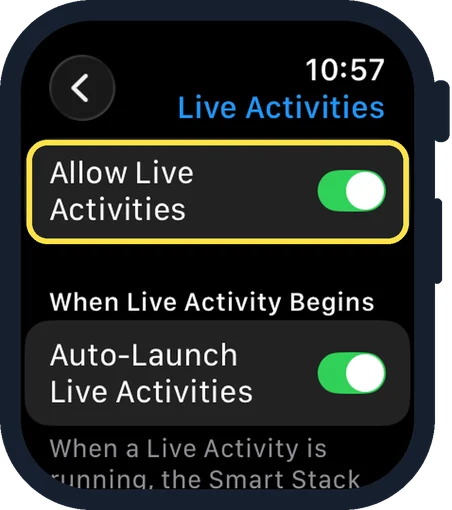
Or switch off Allow Live Activities
This is the first switch on the page. Off means no Live Activities on the watch at all.
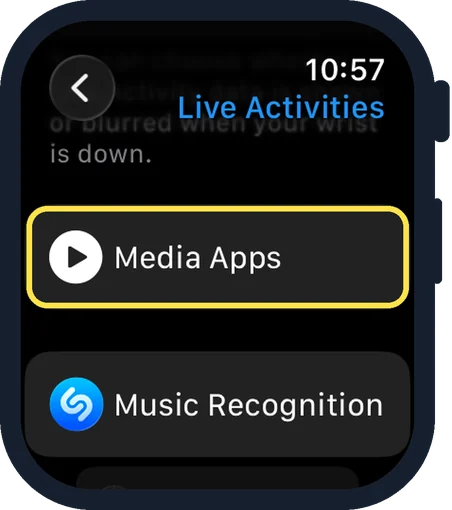
Decide for single kinds of apps
Further down, Media Apps, Music Recognition and Workout each have their own row. The note at the end says Live Activities settings for iOS apps can be managed in the Watch app on the iPhone.
Good to know
With the switches left on, tap the Live Activity at the top of the watch face to open it, and press the Digital Crown to return to the watch face.
Show Live Activities on Wrist Down, on the same page, lets you choose whether the data is shown or blurred when your wrist is down.
In short: Settings, Smart Stack, Live Activities, Auto-Launch Live Activities off.
Links checked on 3 October 2026. Rules and prices change. Check the official source before you act.