How to control Location Services on an iPad
2 min read · 6 steps · Updated 4 October 2026
Open Settings, tap Privacy & Security and tap Location Services. The switch at the top turns location off for everything. Below it, tap an app and choose Never, Ask Next Time Or When I Share, While Using the App or Always.
- Device
- iPad
- Shown on
- iPadOS 26.5 (iPad A16)
- App
- Settings
- Path
- Settings › Privacy & Security › Location Services
- Real screenshots
- 5 of 6 steps
- Checked
- October 2026
- Sources
- 1 official, linked below
Location Services lets apps know where the iPad is. According to the page itself it uses Bluetooth and crowd-sourced Wi-Fi hotspot locations; Apple's general description also names GPS and mobile towers, where the device has them. You decide app by app.
The screenshots show iPadOS 26.5 on an iPad (A16), held upright. In landscape the same rows sit in the same order.
Step by step
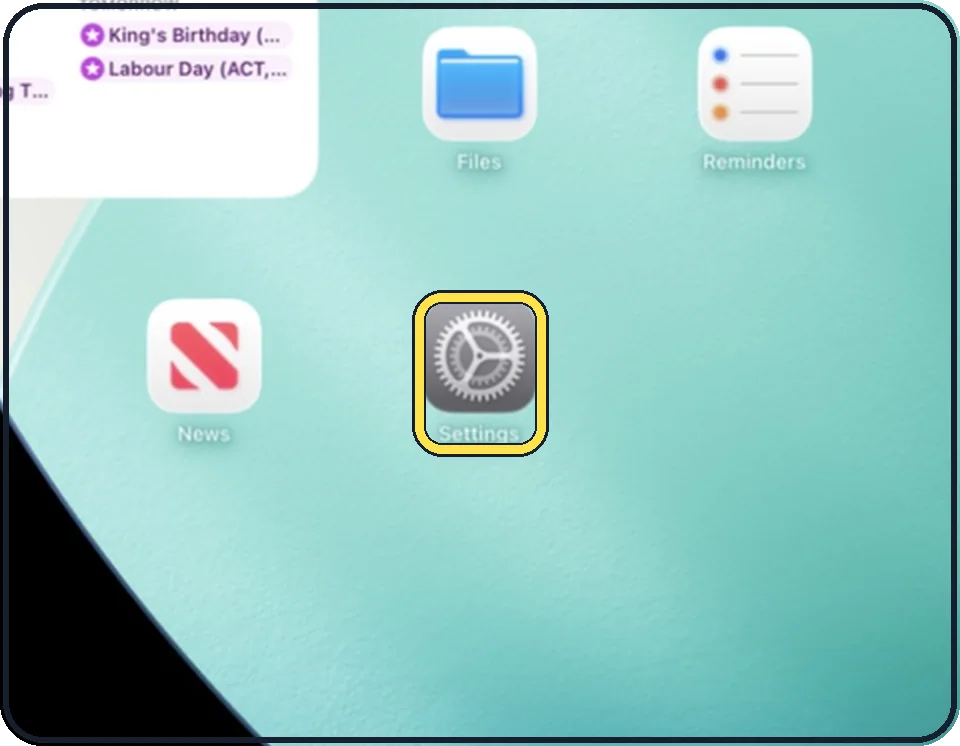
Open Settings
Tap the grey gear icon on the Home Screen. In the picture it is in the second row; it also sits in the Dock at the bottom.
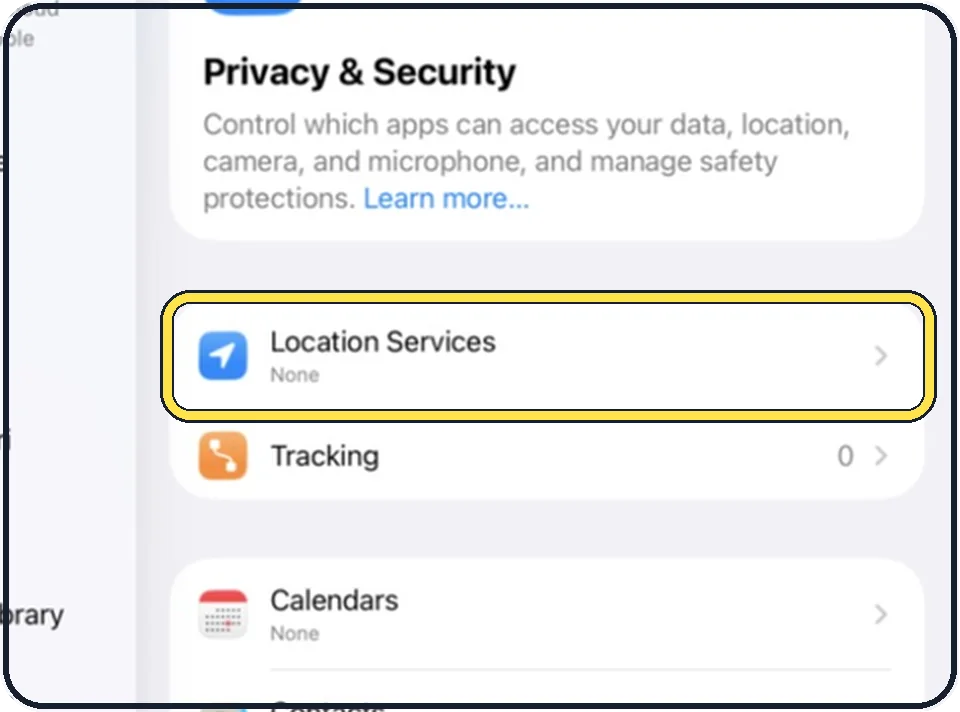
Tap Privacy & Security, then Location Services
Privacy & Security is in the list on the left. Location Services is the first row on the right.
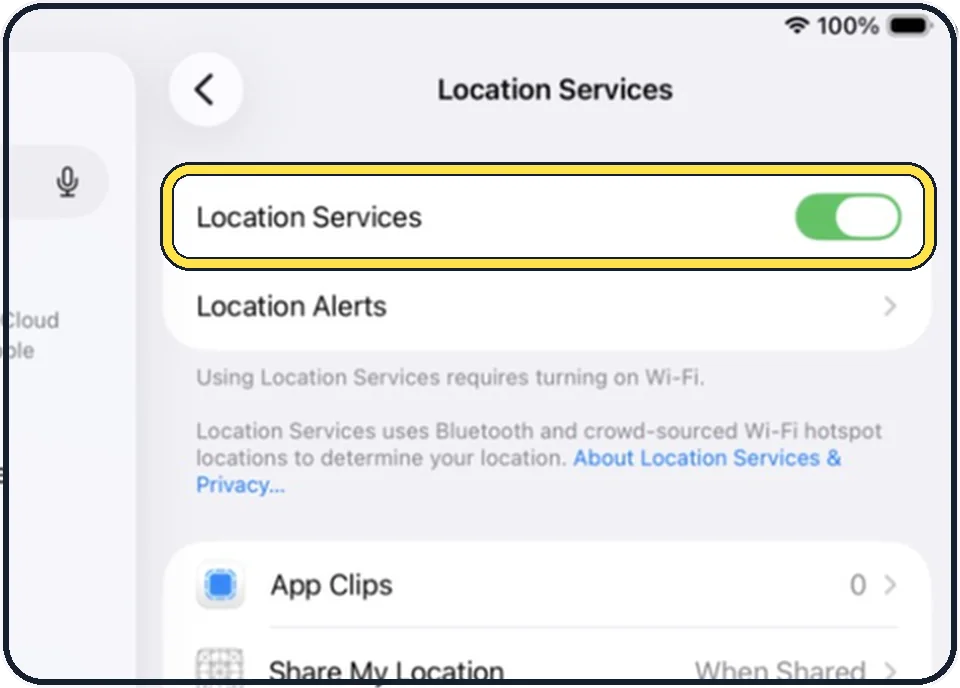
Leave the main switch on, or switch everything off
With Location Services off, no app gets your location.
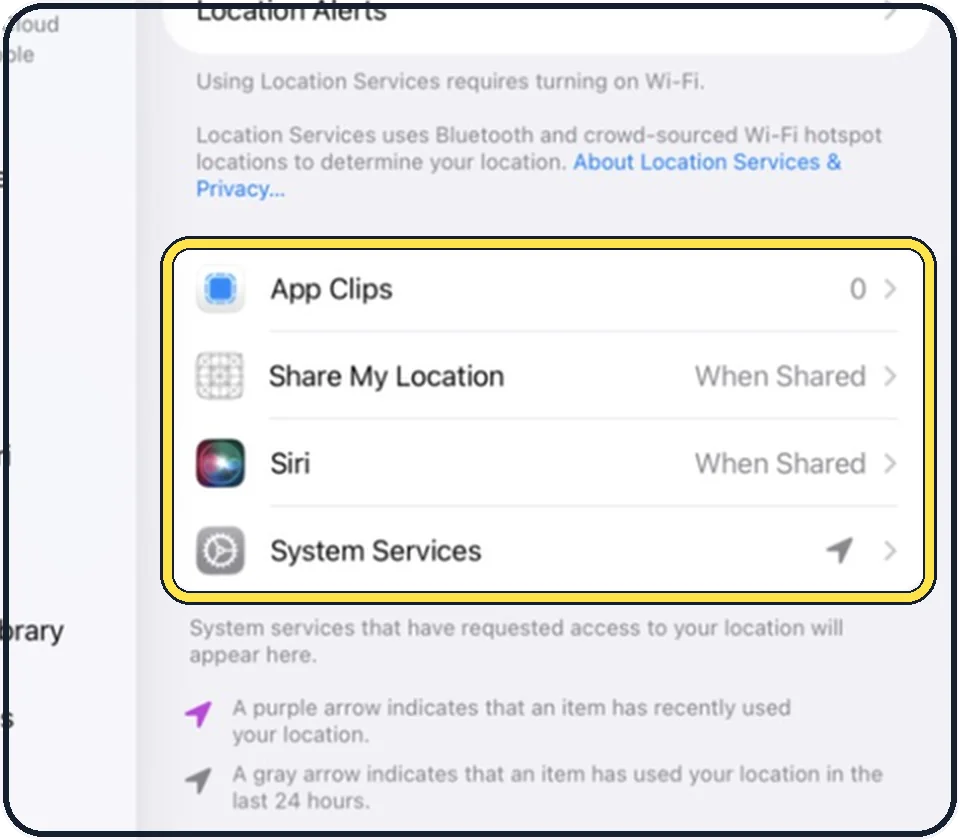
Tap an app in the list and choose
Never: the app gets no location.
Ask Next Time Or When I Share: the iPad asks again and you can allow it once.
While Using the App: only while the app is visible on screen.
Always: also in the background.
The simulator in the picture only lists system entries; on your iPad your own apps appear here.
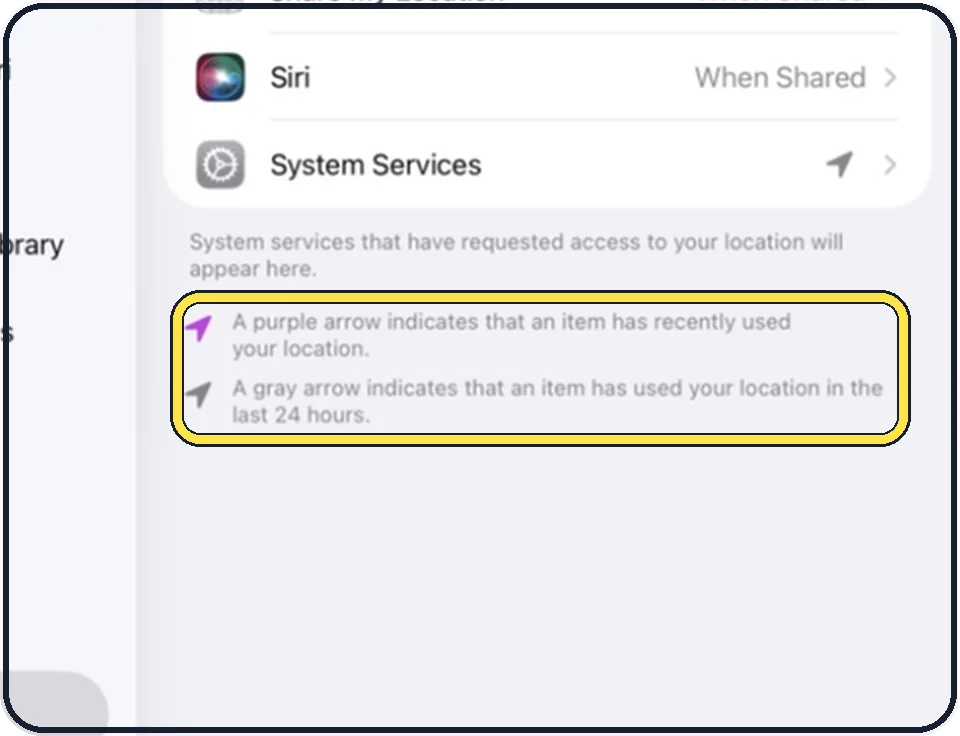
Read the arrows
A purple arrow next to an entry means it used your location recently. A grey arrow means it used your location in the last 24 hours.
Switch off Precise Location where it is not needed
Inside an app's page, Precise Location decides whether the app gets your exact position or only an approximate one.
Good to know
To keep apps from following you across other apps and websites as well: how to stop apps from asking to track you on an iPad.
In short: Settings, Privacy & Security, Location Services, then each app.
Links checked on 3 October 2026. Rules and prices change. Check the official source before you act.