How to stop apps from asking to track you on an iPad
2 min read · 5 steps · Updated 4 October 2026
Open Settings, tap Privacy & Security, tap Tracking and switch off Allow Apps to Request to Track. From then on every new tracking request is denied automatically, and no app shows the question any more.
- Device
- iPad
- Shown on
- iPadOS 26.5 (iPad A16)
- App
- Settings
- Path
- Settings › Privacy & Security › Tracking
- Real screenshots
- 4 of 5 steps
- Checked
- October 2026
- Sources
- 1 official, linked below
Every app must ask before it tracks you or your iPad across apps and websites owned by other companies, for advertising or to share your data with data brokers. One switch answers that question with no for all apps at once.
The screenshots show iPadOS 26.5 on an iPad (A16), held upright. In landscape the same rows sit in the same order.
Step by step
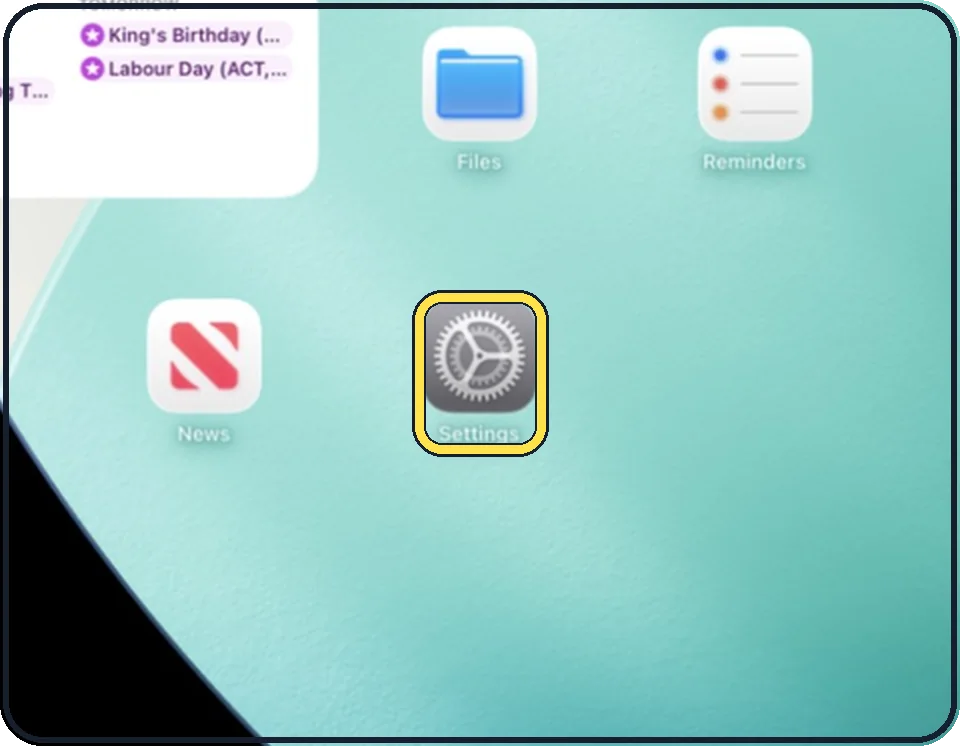
Open Settings
Tap the grey gear icon on the Home Screen. In the picture it is in the second row; it also sits in the Dock at the bottom.
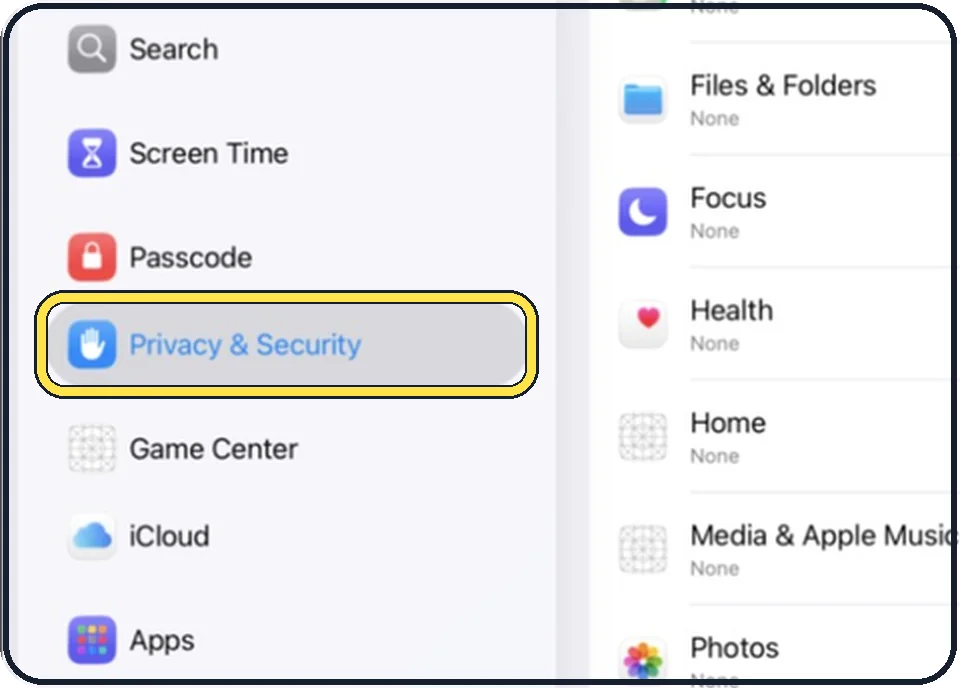
Tap Privacy & Security
It is in the list on the left, below Passcode.
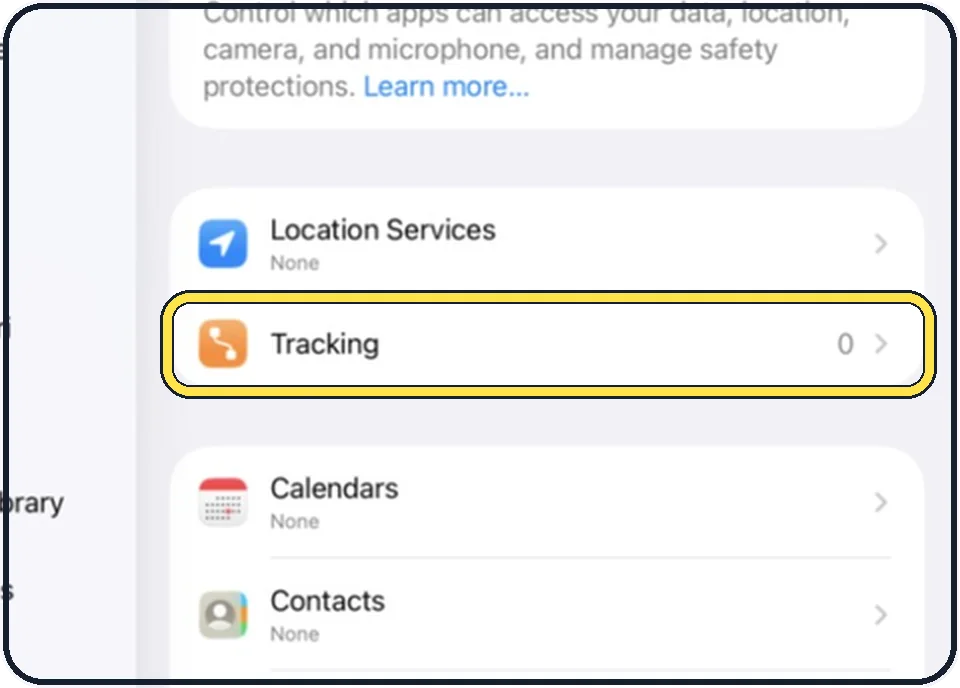
Tap Tracking
It is the second row on the right. The number at the right counts the apps that have asked so far; in the picture it is 0.
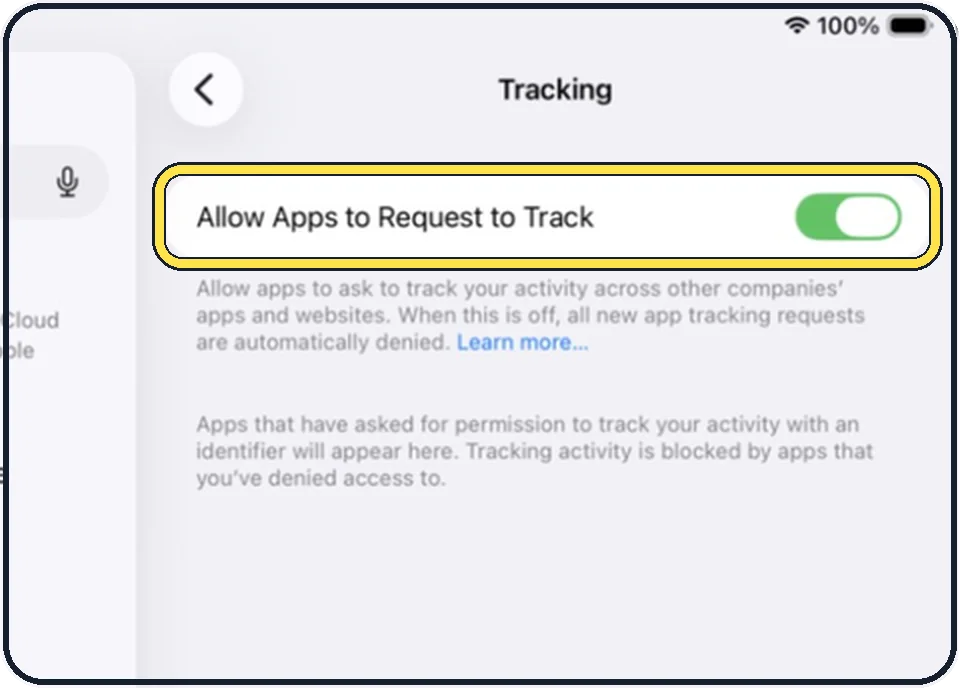
Switch off Allow Apps to Request to Track
The text below the switch says it: when this is off, all new app tracking requests are automatically denied.
Check apps that asked earlier
Apps that already asked are listed below the switch, each with its own switch. Turn off the ones you allowed in the past.
Good to know
To read more about app tracking, tap Learn more below the switch.
In short: Settings, Privacy & Security, Tracking, Allow Apps to Request to Track off.
Links checked on 3 October 2026. Rules and prices change. Check the official source before you act.