AirPods not connecting to an iPhone? 8 fixes to try
2 min read · 8 steps · Updated 2 October 2026
Put both AirPods in the case and check that they charge. Switch on Bluetooth on the iPhone, put the AirPods in your ears and choose them from the AirPlay button in Control Center. If they are missing, close the case for 15 seconds, open it and put the AirPods into pairing mode.
AirPods that refuse to connect are usually low on charge, connected to a different device, or stuck with an old pairing. Apple's checklist starts with the simple checks and ends with pairing them again from scratch.
Menu names are from recent versions of iOS. On older versions a few entries have slightly different names, which are given in the steps.
Step by step
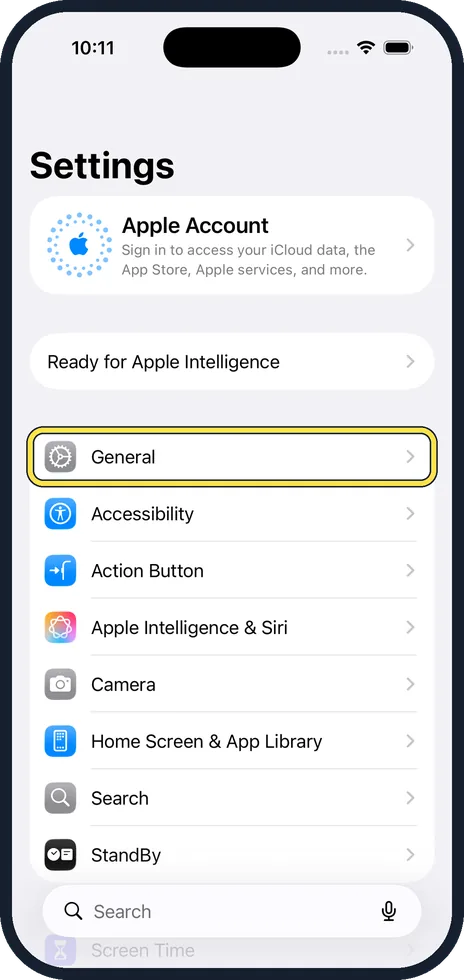
Update the iPhone
New AirPods models need a recent version of iOS. Install what is offered under Settings, General, Software Update. The steps are in how to update an iPhone.
Charge the AirPods
Put both AirPods into the charging case and check that they are charging. AirPods with an empty battery do not appear on the iPhone at all.
Switch on Bluetooth
Open Settings, tap Bluetooth and check that the switch is on.
Choose the AirPods as the audio output
Take the AirPods out of the case and put them in your ears. Open Control Center and tap the AirPlay button in the corner of the music tile. If your AirPods are listed, tap them and play something.
Close the case for 15 seconds
If the AirPods are not listed or do not connect, put both back in the case, close the lid and wait 15 seconds. Then open the lid.
Put the AirPods into pairing mode
On AirPods 4 and later and on AirPods Pro 3, double-tap the front of the case until the status light flashes white. On other models, press and hold the setup button on the back of the case until the light flashes white.
Hold the open case next to the iPhone
Keep the AirPods in the open case, hold it next to the unlocked iPhone and follow the instructions on the screen.
Forget the AirPods and pair again
If that does not work, remove the old pairing: on the iPhone, open Settings, Bluetooth, tap the info button next to the AirPods and choose Forget This Device. Then pair them again as in the two steps before.
Good to know
If the AirPods connect to an iPad or a Mac instead, they have switched on their own. Choose them again from the AirPlay button on the iPhone.
Only one AirPod plays? Put both back in the case for 30 seconds, check that both charge, and try again.
Other headphones and speakers: iPhone Bluetooth not connecting: 8 fixes to try.
In short: Update, charge, Bluetooth on, choose in Control Center, close the case for 15 seconds, pairing mode, hold next to the iPhone, forget and pair again.
- Apple Support: If your AirPods or AirPods Pro won't connect
Rules and prices change. Check the official source before you act.