Time Machine not backing up? 9 fixes to try
2 min read · 9 steps · Updated 2 October 2026
Connect the backup drive directly to the Mac, not through a hub, and check that it has free space. Then start a backup by hand from the Time Machine menu while the Mac is unlocked. If it fails again, repair the backup drive with First Aid in Disk Utility.
Time Machine usually fails for plain reasons: the drive is not reachable, it is full, or something is interfering with the connection. Apple's checklist runs from the simple checks to starting over with an erased drive.
Menu names are from recent versions of macOS, where the settings app is called System Settings. The picture is our own screenshot from macOS Tahoe 26 on a MacBook Pro.
Step by step
Connect the drive directly
Plug the backup drive straight into a port on the Mac. USB hubs and docks are a frequent cause of interrupted backups. Check that a drive with its own power supply is switched on.
For a network drive: same network
If you back up to a network disk or another Mac, make sure your Mac is connected to the same network as that disk.
Check the size of the backup drive
Apple recommends a backup drive with at least twice the storage of the Mac, for example 2 TB for a Mac with 1 TB. A drive that is too small fills up and backups stop.
Free up space on the Mac itself
A startup disk that is almost full also blocks backups. See how to check and free up storage on a Mac.
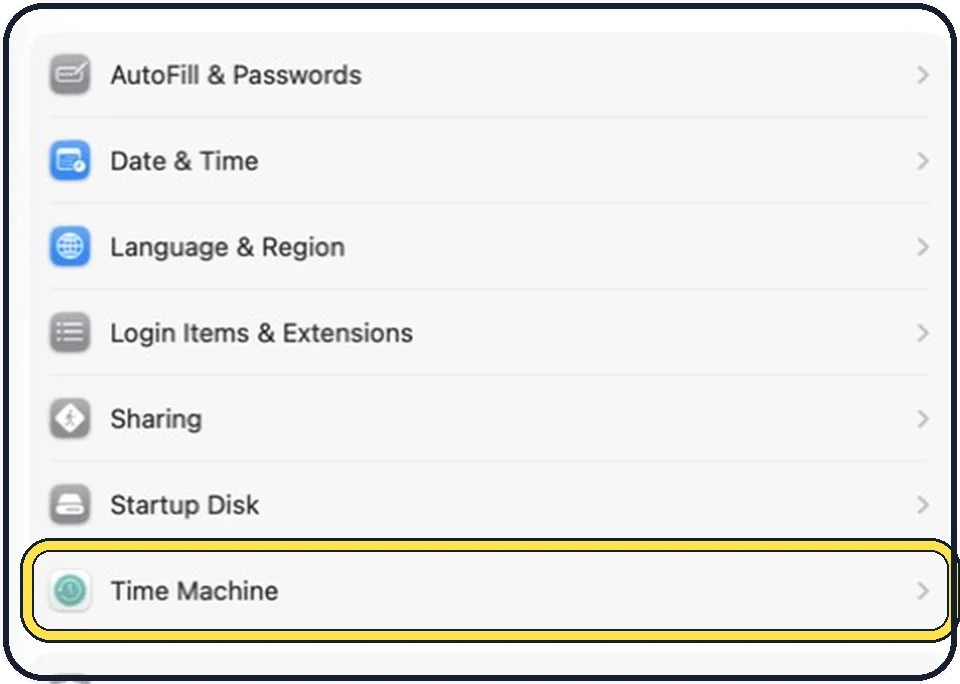
Start a backup by hand
Open System Settings, General, Time Machine, or click the Time Machine icon in the menu bar, and choose Back Up Now. Keep the Mac unlocked and awake until it finishes.
Check VPN and security software
VPN apps and antivirus or other security tools from other makers can block the backup, above all to a network disk. Switch them off for a test.
Exclude cloud sync folders for a test
If you use a cloud storage app that syncs a large folder, exclude that folder from the backup for now: in the Time Machine settings, click Options and add the folder.
Repair the backup drive
Open Disk Utility, select the backup drive and click First Aid. Errors on the drive itself are repaired this way.
Start again with an empty drive
As a last step, erase the backup drive and set it up in Time Machine again, or try a different drive. This deletes the old backups on it.
Good to know
If the drive does not appear on the Mac at all, start with external drive not showing up on a Mac: 8 fixes to try.
A backup made on macOS Monterey 12 or later can only be restored on a Mac with macOS Big Sur 11 or later.
The set-up from the beginning is in how to back up a Mac with Time Machine.
In short: Direct connection, same network, big enough drive, free space on the Mac, Back Up Now, no VPN, exclude sync folders, First Aid, erase and start again.
- Apple Support: If you can't back up or restore your Mac using Time Machine
Rules and prices change. Check the official source before you act.