How to keep the Apple Watch screen on longer
2 min read · 5 steps · Updated 4 October 2026
On the watch, open Settings, tap Display & Brightness, scroll down to Wake, tap Wake Duration and choose Wake for 70 Seconds. The display then stays on for 70 seconds, not 15, after you tap it.
- Device
- Apple Watch
- Shown on
- watchOS 26 (Apple Watch)
- App
- Settings
- Path
- Settings › Display & Brightness › Wake Duration
- Real screenshots
- 5 of 5 steps
- Checked
- October 2026
- Sources
- 1 official, linked below
After a tap, the Apple Watch display stays on for 15 seconds and then goes dark again. That is short when you read a message or follow a recipe. The watch offers one longer setting.
The screenshots show watchOS 26.5 on an Apple Watch Series 11.
Step by step
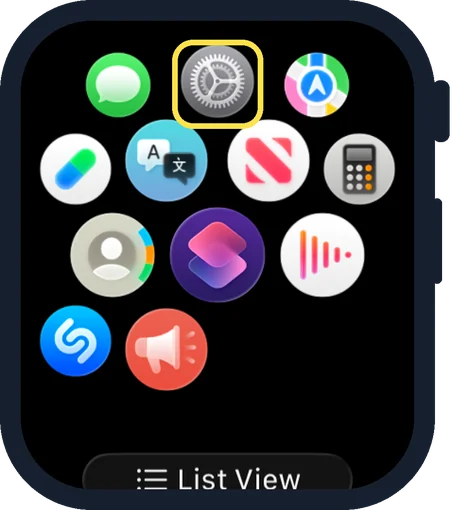
Open Settings on the watch
Press the Digital Crown to see your apps and tap the Settings gear.
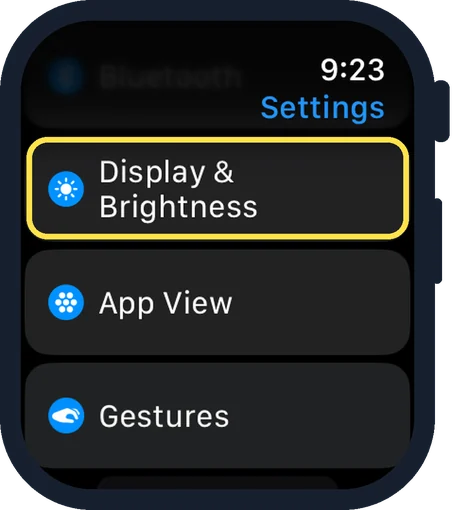
Scroll down and tap Display & Brightness
It is below Bluetooth and above App View.
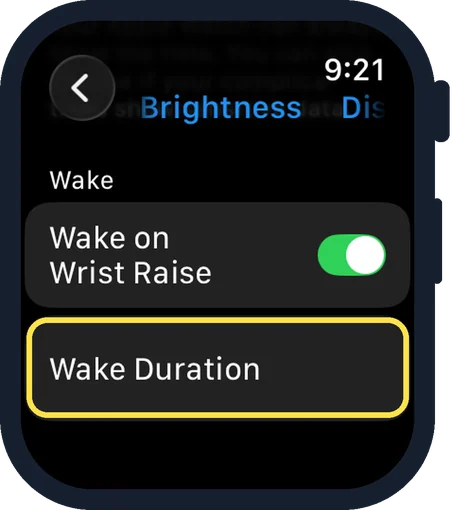
Scroll down to Wake and tap Wake Duration
The Wake group is at the bottom of the page.
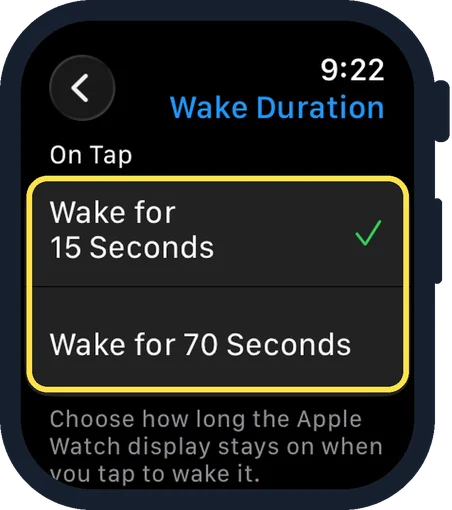
Tap Wake for 70 Seconds
Under On Tap there are two choices: Wake for 15 Seconds, which has the tick at first, and Wake for 70 Seconds. The note below says you choose how long the display stays on when you tap to wake it.
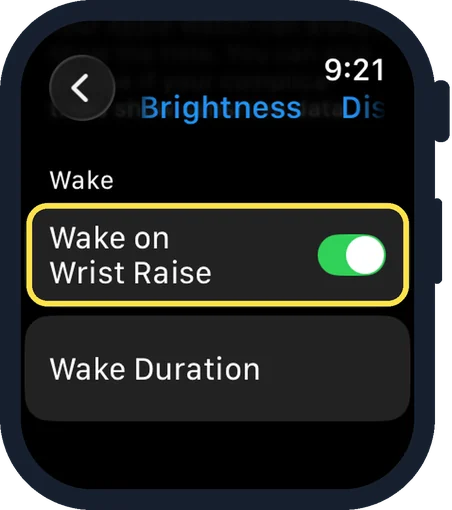
Check Wake on Wrist Raise
This switch is above Wake Duration and is on at first. With it on, the display wakes when you raise your wrist and sleeps again when you lower it.
Good to know
According to Apple, the display also wakes when you tap it or press or turn the Digital Crown.
If the watch does not wake when you raise your wrist, Apple says to make sure the proper wrist and watch orientation are selected.
In short: Settings, Display & Brightness, Wake Duration, Wake for 70 Seconds.
Links checked on 3 October 2026. Rules and prices change. Check the official source before you act.