How to make an Apple Watch say the time aloud
2 min read · 4 steps · Updated 4 October 2026
On the watch, open Settings, tap Clock and switch on Speak Time. Then hold two fingers on the watch face, and the watch speaks the time. Below the switch you choose whether it obeys Silent Mode or always speaks.
- Device
- Apple Watch
- Shown on
- watchOS 26 (Apple Watch)
- App
- Settings
- Path
- Settings › Clock
- Real screenshots
- 4 of 4 steps
- Checked
- October 2026
- Sources
- 1 official, linked below
Hearing the time helps when you cannot look at your wrist or cannot read the small face. Apple calls the gesture: hold two fingers on the watch face. It works once Speak Time is on.
The screenshots show watchOS 26.5 on an Apple Watch Series 11.
Step by step
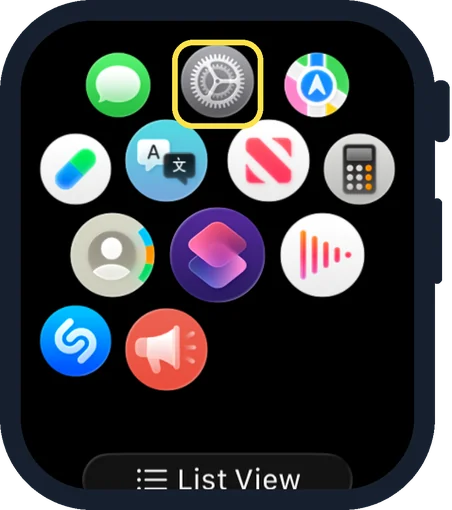
Open Settings on the watch
Press the Digital Crown to see your apps and tap the Settings gear.
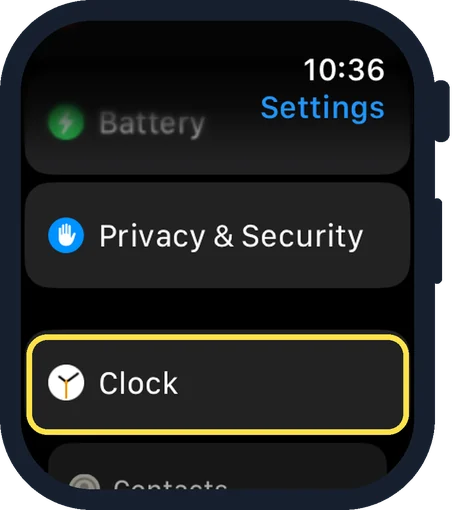
Scroll down and tap Clock
Clock is near the end of the Settings list, below Privacy & Security.
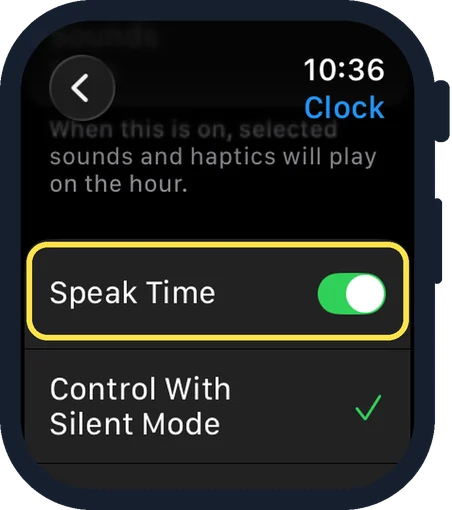
Scroll down and switch on Speak Time
In the picture it is already on.
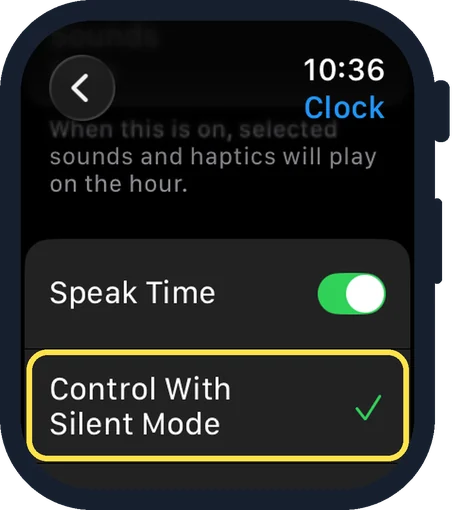
Choose when it may speak
Control With Silent Mode has the tick at first: the watch then stays quiet while Silent Mode is on. Always Speak is the other choice, one row further down.
Good to know
You can also ask Siri. With Raise to Speak switched on, raise your wrist and say "What time is it?"
A sound every hour is a different setting: how to make an Apple Watch chime every hour.
In short: Settings, Clock, Speak Time on, then hold two fingers on the watch face.
Links checked on 3 October 2026. Rules and prices change. Check the official source before you act.