How to switch Apple Watch faces by swiping
2 min read · 3 steps · Updated 4 October 2026
On the watch, open Settings, tap Clock and switch on Swipe to Switch Watch Face. You can then switch between your watch faces by swiping left or right from the edge of the screen. The switch is off at first.
- Device
- Apple Watch
- Shown on
- watchOS 26 (Apple Watch)
- App
- Settings
- Path
- Settings › Clock
- Real screenshots
- 3 of 3 steps
- Checked
- October 2026
- Sources
- 1 official, linked below
If you keep several watch faces, for example one for work and one for sport, swiping between them is the quickest way to change. On watchOS 26.5 that swipe is behind a switch that is off when the watch is new.
The screenshots show watchOS 26.5 on an Apple Watch Series 11.
Step by step
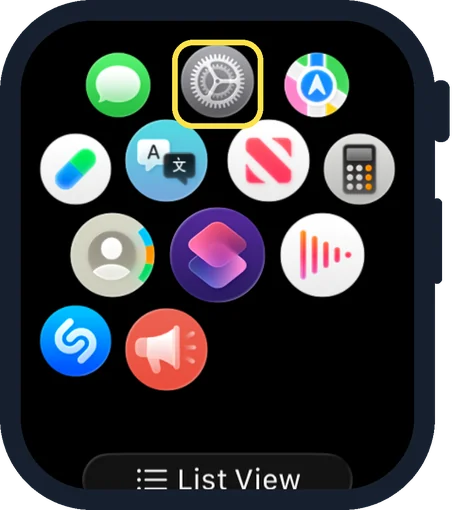
Open Settings on the watch
Press the Digital Crown to see your apps and tap the Settings gear.
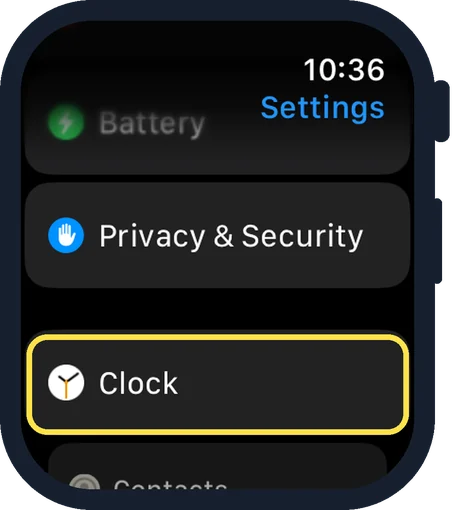
Scroll down and tap Clock
Clock is near the end of the Settings list, below Privacy & Security.
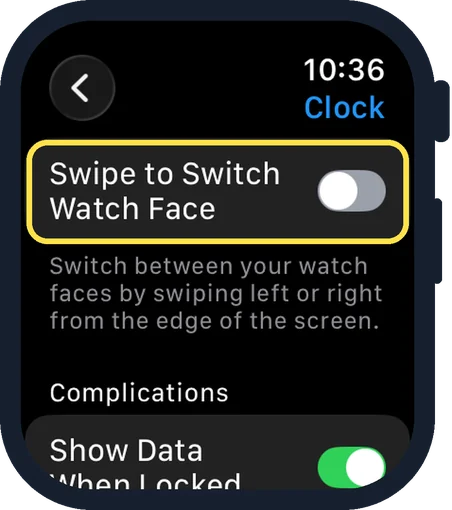
Switch on Swipe to Switch Watch Face
It is the first row of the Clock page. The note below reads: switch between your watch faces by swiping left or right from the edge of the screen.
Good to know
This guide rests on the Clock settings screen of watchOS 26.5, shown in the picture.
In short: Settings, Clock, Swipe to Switch Watch Face on.
Links checked on 3 October 2026. Rules and prices change. Check the official source before you act.