How to set an Apple Watch a few minutes fast
2 min read · 3 steps · Updated 4 October 2026
On the watch, open Settings, tap Clock, tap +0 min, turn the Digital Crown to choose how many minutes ahead the watch face should be, and tap Done. Only the time shown on the watch face changes. Alarms, notifications and other times still match the actual time.
- Device
- Apple Watch
- Shown on
- watchOS 26 (Apple Watch)
- App
- Settings
- Path
- Settings › Clock
- Real screenshots
- 3 of 3 steps
- Checked
- October 2026
- Sources
- 1 official, linked below
Some people set their watch a few minutes fast so that they leave on time. The Apple Watch can do that for the watch face alone. The screen itself says it: all alerts and notifications will still come in at the correct time.
The screenshots show watchOS 26.5 on an Apple Watch Series 11.
Step by step
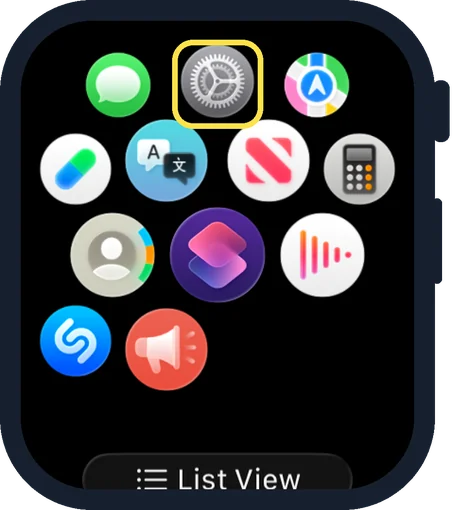
Open Settings on the watch
Press the Digital Crown to see your apps and tap the Settings gear.
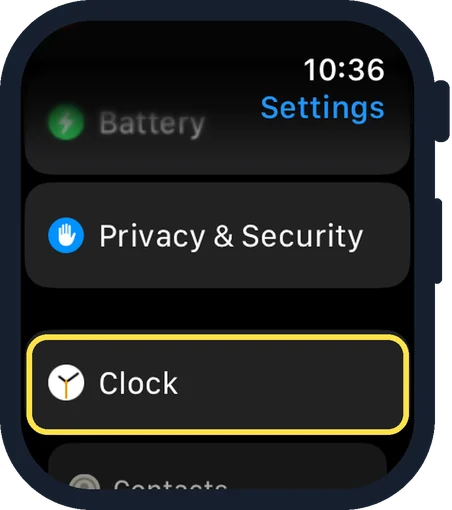
Scroll down and tap Clock
Clock is near the end of the Settings list, below Privacy & Security.
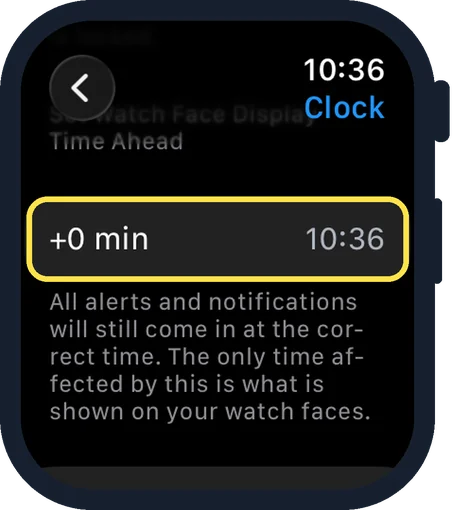
Scroll down and tap +0 min
It is under the heading Set Watch Face Display Time Ahead. The row shows the offset on the left and the resulting time on the right.
Good to know
Then turn the Digital Crown to choose the number of minutes and tap the Done button.
To undo it, go the same way and turn the crown back to +0 min.
In short: Settings, Clock, +0 min, turn the Digital Crown, Done.
Links checked on 3 October 2026. Rules and prices change. Check the official source before you act.