iPhone not sending emails? 6 fixes to try
2 min read · 6 steps · Updated 2 October 2026
Open Mail, go to the list of mailboxes and tap Outbox. Open the stuck email, check the address and tap Send again. If it still does not leave, check your password on the provider's website, then remove the account under Settings, Apps, Mail, Mail Accounts and add it again.
When an email does not go out, the Mail app keeps it in a mailbox called Outbox and tries again later. The cause is usually the connection, a wrong address or a changed password.
The pictures are from iOS 26 on an iPhone 17. On older versions the rows are in the same place, with a slightly different look.
Step by step
Check the internet connection
Open a web page in Safari. If it does not load, fix the connection first. Mail sends the waiting email by itself once the iPhone is online again.
Look in the Outbox
In Mail, tap the back arrow at the top left until you see the list of mailboxes, then tap Outbox. If there is no Outbox, the email has been sent.
Check the address and send again
Tap the email in the Outbox. Make sure the recipient's address is spelled correctly, then tap Send.
Check your password
Sign in to your email on the provider's website. If the password is refused there too, reset it with the provider, then enter the new password on the iPhone when Mail asks for it.
Ask the email provider
Check the provider's status page for an outage. Ask whether a security feature such as two-step verification is switched on for your account. Some providers then need a special app password for the Mail app.
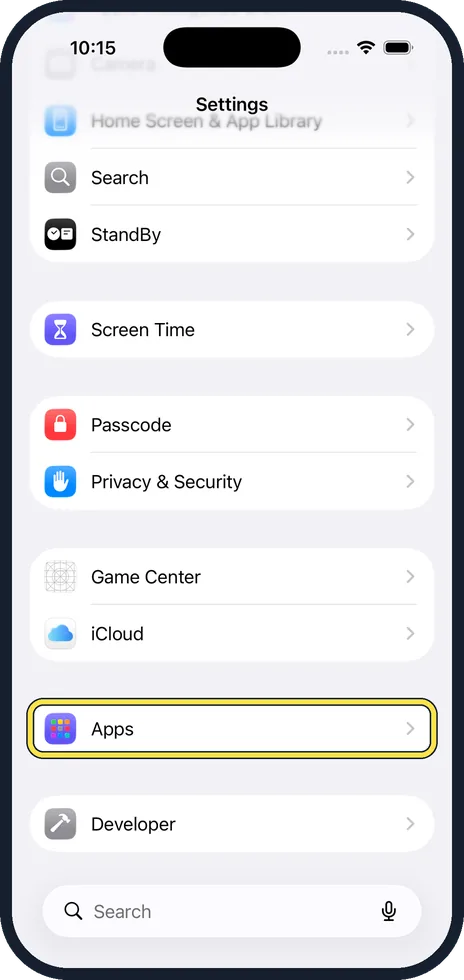
Remove the account and add it again
Open Settings, tap Apps, then Mail, then Mail Accounts. Tap the account, tap Delete Account and add the account again. Before you do this, check on the provider's website that all your email is stored there.
Good to know
Deleting an account from the iPhone removes its email from the phone. With most accounts the messages stay on the provider's server and come back when you add the account again. With an old POP account they may exist only on the phone, so check first.
An iPhone backup saves the mail settings, but not the emails themselves.
Very large attachments are a common reason for an email that hangs. Make photos smaller before sending with our Compress image tool.
How to add the account back: how to add an email account to an iPhone.
In short: Connection, Outbox, address, password, provider, delete the account and add it again.
- Apple Support: If you can't send email on your iPhone or iPad
Rules and prices change. Check the official source before you act.