iPhone wireless charging not working? 8 fixes to try
2 min read · 8 steps · Updated 2 October 2026
Unplug any cable from the iPhone, take off a thick or metal case, remove cards and magnetic mounts from the back, and place the iPhone in the centre of the charger with the screen facing up. If it stops at 80%, the iPhone is too warm. Move it to a cooler place.
Every iPhone from the iPhone 8 onwards charges wirelessly on a Qi charger. Wireless charging is sensitive to position, to anything between phone and charger, and to heat. Most problems are solved in a minute.
Step by step
Unplug the cable from the iPhone
An iPhone does not charge wirelessly while it is connected to a computer or a charger by USB. Pull the cable out.
Check the power to the charger
Make sure the charging pad is connected to its power adapter and the adapter is in a working socket. Use the adapter that came with the charger, or the one its maker recommends.
Centre the iPhone on the charger
Put the charger on a level surface and place the iPhone in the middle, screen up. Charging should start within a few seconds, and the battery symbol in the status bar shows a lightning bolt.
Take off the case
Thick cases, metal cases and battery cases can slow down or block wireless charging. Remove the case and try again.
Remove anything between iPhone and charger
Magnetic mounts, metal plates, ring holders and cards in a case sit exactly where the charging coil is. Take them off. Apple warns that charging can damage the magnetic strip or chip in bank cards, security badges, passports and key fobs.
Stop the iPhone from moving
A vibration from a notification can shift the iPhone off the coil, and charging stops. Switch off vibration, turn on Do Not Disturb, or use a case that keeps the phone from sliding.
Let a warm iPhone cool down
The iPhone gets slightly warm while it charges wirelessly. If the battery becomes too warm, the software stops charging above 80%. Move the iPhone and the charger to a cooler place, and charging continues when the temperature drops.
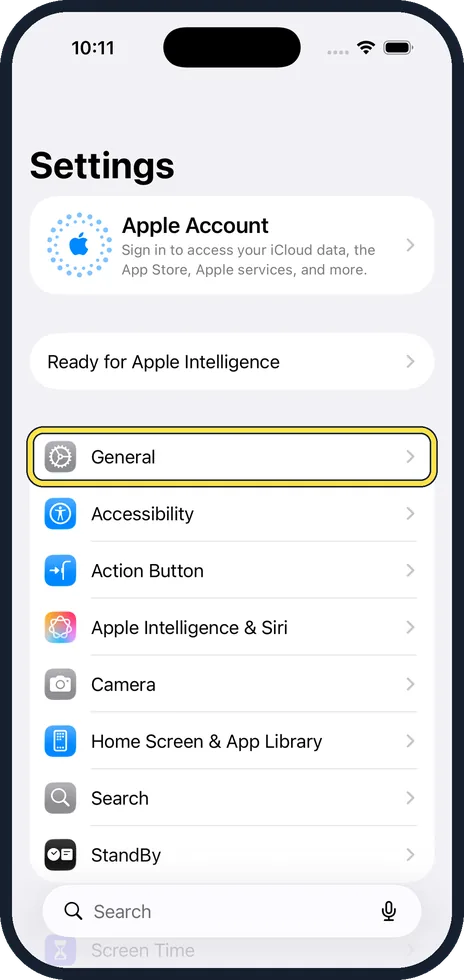
Update and restart
Apple gives the charging speeds for the latest version of iOS. Open Settings, General, Software Update, install any update and restart the iPhone.
Good to know
Wireless charging is slower than a cable. Apple gives up to 7.5 watts on an ordinary Qi charger. MagSafe chargers line up with magnets and charge faster.
Check whether the iPhone charges with a cable. If it does not charge that way either, follow iPhone not charging: 8 fixes to try in order.
More on heat: iPhone overheating: 7 fixes and what the temperature warning means.
In short: No cable, powered charger, centred, no thick case, nothing in between, no vibration, cool place, update.
- Apple Support: How to wirelessly charge your iPhone
Rules and prices change. Check the official source before you act.