Phone Battery Draining Fast? Change These Settings (iPhone & Android)
3 min read · 4 steps · Updated 1 October 2026
Battery at 15% by the afternoon? Find the app draining it, fix screen settings, stop background drain, use Low Power Mode or Battery Saver, and protect your battery's long-term health with optimised charging. Works on iPhone and Android.

It's only two in the afternoon and your phone is already at fifteen percent. Before you buy a new one, try these simple settings and habits. They can make your battery last much longer, on iPhone and Android.
Step by step

Find out what's using your battery
Open Settings, then Battery. You'll see which apps used the most power in the last day. If one app you barely use is near the top, that's your first suspect. Update it, limit it, or delete it.
The screen is usually the biggest drain. Turn on auto brightness, lower the brightness a little, and set the screen to turn off after thirty seconds or one minute. If your phone has dark mode and an OLED screen, dark mode can save power too.
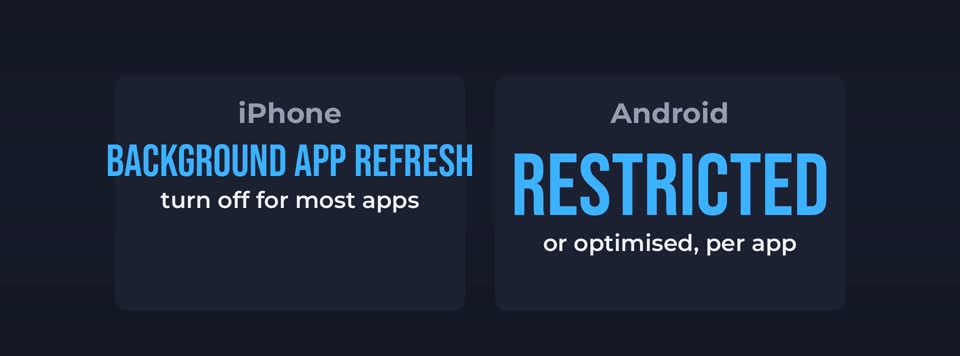
Stop apps working in the background
Many apps refresh in the background, even when you're not using them. On iPhone, look for Background App Refresh. On Android, check each app's battery setting and choose restricted or optimised for apps that don't need it.
Check location access. Go to Privacy or Location settings and set most apps to only while using the app, or never. Maps and weather may need it. Your games and shopping apps usually don't.
Turn off notifications you don't need. Every notification wakes up your screen and your phone. Keep the important ones, like messages and calls, and switch off the rest.

Use the built in power saver
Low Power Mode on iPhone, or Battery Saver on Android, reduces background activity and visual effects. Turn it on when you're below twenty percent, or all day when you know it will be a long one.
Weak signal drains your battery fast, because your phone keeps searching. In places with bad coverage, use Wi-Fi if you can, or switch on airplane mode if you don't need to be reachable.

Protect the battery itself
Heat is the enemy of batteries. Don't leave your phone in a hot car or in direct sun, and take it out of a thick case if it gets hot while charging. Very cold weather can also make the battery drop faster for a while.
Good to know
You don't need to let your phone drain to zero before charging. Modern batteries prefer shallow top ups. Many phones have an optimised charging option that holds the charge at around eighty percent overnight. Turn it on.
Use a good quality charger and cable. Cheap, uncertified chargers can charge badly and, in rare cases, be unsafe. The one from your phone's maker or a trusted brand is the safe choice.
Check your battery health. On iPhone, it's under Battery, then Battery Health. On many Android phones, it's in the battery or device care settings. If the maximum capacity is low, a battery replacement is often much cheaper than a new phone.
And keep your phone updated. Updates often include battery improvements and fixes for apps that drain power. Restarting your phone once in a while can also stop stuck apps running in the background.
In short: Check which apps use the most battery, dim the screen, limit background refresh and location, use the power saver, avoid heat, and check your battery health.