How to lock an iPhone to one app with Guided Access
2 min read · 6 steps · Updated 2 October 2026
Open Settings, tap Accessibility, Guided Access and switch it on, then set a passcode. Open the app you want, triple-click the side button and tap Start. To leave, triple-click again and enter the passcode or use Face ID.
Guided Access keeps the iPhone in a single app. It is useful when you hand the phone to a child to watch a video, or to someone to look at one photo, without them being able to open anything else.
Step by step
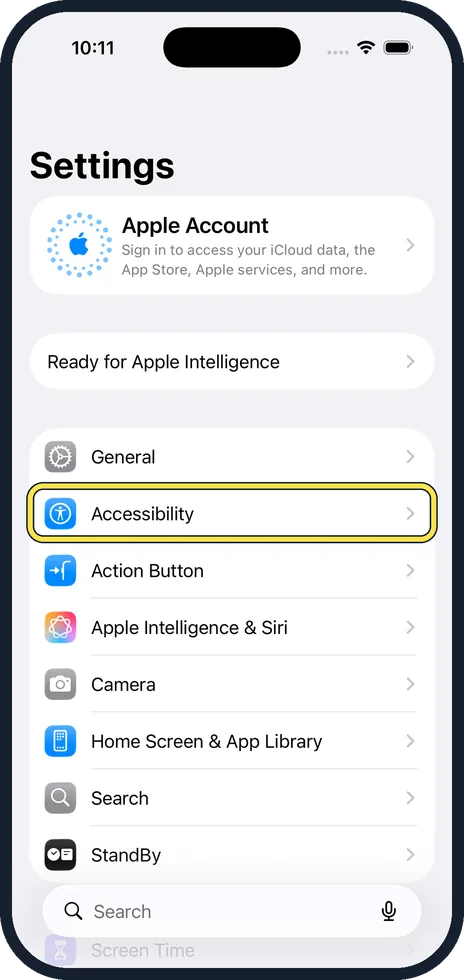
Open Settings, Accessibility, Guided Access
It is in the General group near the bottom of Accessibility.
Switch it on and set a passcode
Tap Passcode Settings, Set Guided Access Passcode. You can also allow Face ID to end a session.
Open the app and triple-click the side button
On an iPhone with a Home button, triple-click the Home button.
Choose what is allowed
Circle areas of the screen with your finger to disable them, for example a settings button. Tap Options to switch off touch, the volume buttons or motion, or to set a time limit.
Tap Start
The phone now stays in this app.
End the session
Triple-click the side button, enter the passcode or use Face ID, and tap End. On iOS 18 and earlier, a double-click uses Face ID.
Good to know
If you forget the Guided Access passcode, force restart the iPhone to get out.
With touch switched off, a child can watch a video without pausing or skipping it by accident.
Notifications do not appear during a session, and Emergency SOS is not available while Guided Access is running.
In short: Settings, Accessibility, Guided Access on. In the app, triple-click the side button, Start.
- Apple Support: Use Guided Access with iPhone, iPad and iPod touch
Rules and prices change. Check the official source before you act.