How to connect Bluetooth headphones to an Apple Watch
2 min read · 4 steps · Updated 2 October 2026
Put the headphones in pairing mode. On the watch, open Settings, tap Bluetooth and tap the headphones when they appear. AirPods that are already set up with your iPhone need no pairing: just press play.
With headphones connected to the watch you can listen to music, podcasts and audiobooks on a run without the iPhone. The watch has no headphone socket, so the connection is always Bluetooth.
These steps are for recent versions of watchOS. The pictures are either our own screenshots from Apple's watchOS 26 simulator or simplified diagrams of the watch screen.
Step by step
Put the headphones in pairing mode
How this works depends on the model. Usually you hold a button until a light flashes. See the manual of the headphones.
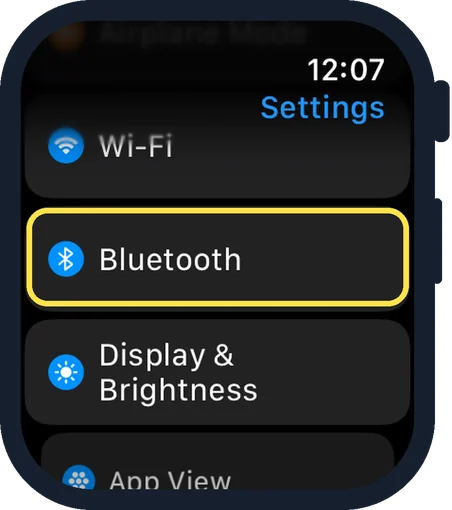
Open Settings on the watch and tap Bluetooth
Press the Digital Crown to see your apps, then tap the Settings gear.
Tap the headphones when they appear
After a moment the entry shows that they are connected.
Start playback
Open Music, Podcasts or Audiobooks on the watch and press play.
Good to know
AirPods that you have set up with your iPhone are ready on the watch automatically.
To choose a different output during playback, tap the More Actions button on the play screen.
To check the volume, press the side button to open Control Centre and tap the hearing button while you listen.
To limit loud sound: Settings, Sounds & Haptics, Headphone Safety.
Music must be on the watch, or the watch needs its own internet connection, when the iPhone stays at home.
In short: Headphones in pairing mode. Watch: Settings, Bluetooth, tap the headphones.
- Apple Support: Connect Apple Watch to Bluetooth headphones or speakers
Rules and prices change. Check the official source before you act.