Siri not working on an iPhone? 7 fixes to try
2 min read · 7 steps · Updated 2 October 2026
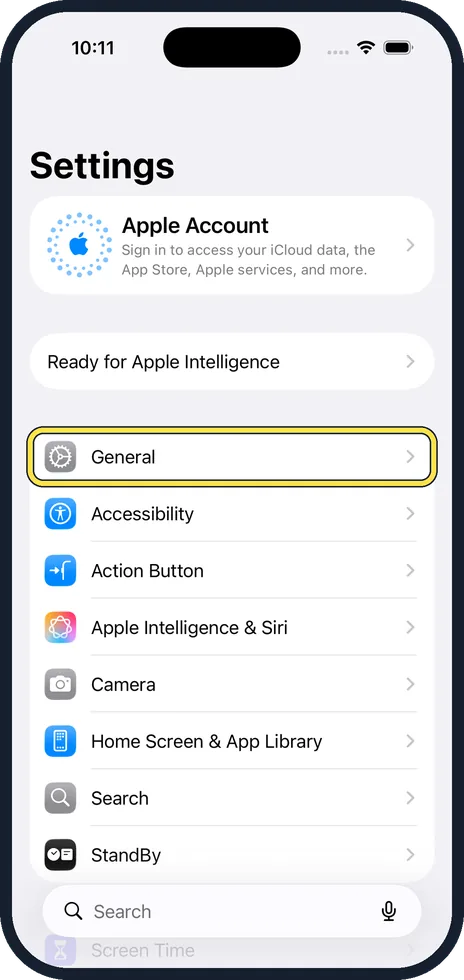
Check the internet connection first, because Siri needs it for most requests. Then open Settings, tap Siri (or Apple Intelligence & Siri), and switch the listening option for "Siri" or "Hey Siri" off and on again. The iPhone then asks you to speak a few phrases to learn your voice.
When Siri stays silent, it is usually switched off, cannot get online, or no longer recognises your voice. Apple lists these checks in this order.
Menu names are from recent versions of iOS. On older versions a few entries have slightly different names, which are given in the steps.
Step by step
Check the internet connection
Without a connection Siri answers with a message such as "I'm having trouble with the connection". Open a website in Safari to test Wi-Fi or mobile data.
Make sure Siri is switched on
Open Settings and tap Siri. On some versions of iOS the entry is called Apple Intelligence & Siri. If Siri is off, turn it on and follow the set-up on the screen.
Switch voice activation off and on
In the Siri settings, open the listening option (Requests, or Talk & Type to Siri). Check that "Siri" or "Hey Siri" is selected. If it already is, switch it off and on again.
Teach Siri your voice again
When you switch listening back on, a set-up screen appears. Tap Continue, speak each phrase that is shown, and tap Done.
Try the button instead
Press and hold the side button (or the Home button on models that have one) to check whether Siri answers at all. If it does, only voice activation is the problem.
If you cannot hear Siri
In the Siri settings, tap Responses and choose Prefer Spoken Responses. Then check the volume while Siri is speaking, using the volume buttons.
Check for a VPN and for updates
Some VPN profiles block Siri. Switch the VPN off for a test. Then install any waiting update: how to update an iPhone.
Good to know
Siri does not listen for its name while the iPhone lies face down or is covered.
How to use it day to day: how to use Siri on an iPhone.
If Siri mishears you often, check the microphone: iPhone microphone not working: 6 fixes to try.
In short: Internet, Siri switched on, listening off and on, teach your voice again, test with the button, spoken responses, VPN and updates.
- Apple Support: If Siri isn't working on your iPhone or iPad
Rules and prices change. Check the official source before you act.