Mac says an app can't be opened? How to allow it safely
2 min read · 6 steps · Updated 2 October 2026
Try to open the app once, so the warning appears. Then open System Settings, click Privacy & Security, scroll down and click Open Anyway next to the name of the app. Confirm with Open. Do this only for software you trust and downloaded from the maker's own website.
macOS checks every app from outside the App Store. If the developer is not registered with Apple, or the app was not scanned by Apple for malware (notarised), the Mac refuses to open it with a double-click. The block is a safety net, and there is one approved way around it.
Menu names are from recent versions of macOS, where the settings app is called System Settings. The picture is our own screenshot from macOS Tahoe 26 on a MacBook Pro.
Step by step
Read the warning
A message that the app was downloaded from the internet is a simple question: click Open. A message that Apple could not verify the app, or cannot check it for malicious software, offers only Done and Move to Trash. That is the case for the next steps. A message that the app will damage your computer means malware was found: move it to the Trash.
Ask yourself whether you trust the source
Did you download the app from the developer's own website? Is the developer known? Cracked software and downloads from link collections are the usual carriers of Mac malware.
Click Done
The attempt to open the app is what makes the Mac offer the exception afterwards.
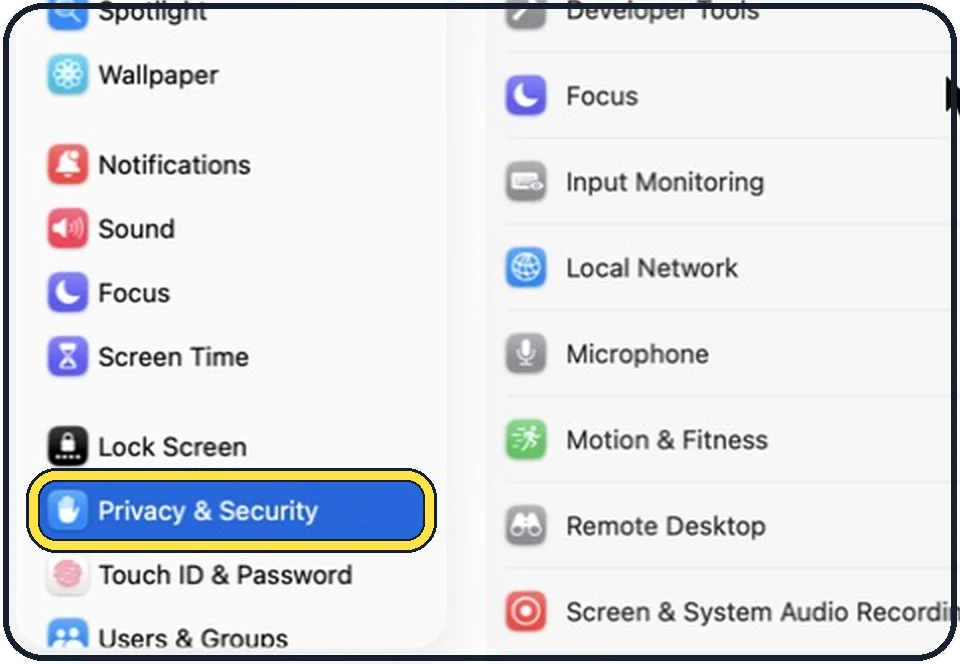
Open Privacy & Security
Choose Apple menu, System Settings and click Privacy & Security in the sidebar. Scroll down to the Security section.
Click Open Anyway
The button appears next to a note that the app was blocked. Enter your password or use Touch ID.
Confirm with Open
The warning appears once more. Click Open. From now on the app opens with a normal double-click, as an exception saved for this app.
Good to know
The Open Anyway button is only shown for a while after you tried to open the app. If it is not there, try to open the app again.
Under Allow applications from, in the same section, you choose between App Store alone and App Store and known developers. The second is the usual setting.
If the message says the app is damaged and can't be opened, download it again. The download may be incomplete.
To get rid of an app you no longer trust: how to uninstall apps on a Mac. An extra layer: how to turn on the firewall on a Mac.
In short: Try to open, Done, System Settings, Privacy & Security, Open Anyway, password, Open. Only for software from a source you trust.
- Apple Support: Safely open apps on your Mac
Rules and prices change. Check the official source before you act.