Apple Watch update stuck or won't install? 7 fixes to try
2 min read · 7 steps · Updated 2 October 2026
Put the watch on its charger with at least 50 percent battery, keep the iPhone on Wi-Fi next to it, and restart both the watch and the iPhone. If the download still fails, open the Apple Watch app, tap General, then Storage, delete the update file and start again.
A watchOS update takes from several minutes to an hour, and the progress wheel can look stuck for a long time. Most failed updates come down to the charger, the Wi-Fi or a damaged download.
These steps are for recent versions of watchOS. The picture is our own screenshot from Apple's watchOS 26 simulator.
Step by step
Check the three requirements
The watch must be on its charger and at least 50 percent charged. The iPhone must be on Wi-Fi and close to the watch. The iPhone itself must have the latest version of iOS.
Be patient
Apple gives a time of several minutes to an hour. Do not restart the watch or the iPhone and do not close the Apple Watch app while the wheel on the watch is turning.
Check the charger
If the update does not start, make sure the watch really is charging. A lightning bolt on the watch face shows it.
Restart the watch and the iPhone
Restart the Apple Watch, restart the paired iPhone, and then start the update again.
Delete the update file
If the download fails, open the Apple Watch app on the iPhone, tap General, then Storage, and delete the update file. Then download the update again under General, Software Update.
Remove a beta profile
If the watch once ran test software, open the Apple Watch app, tap General, then Profiles, and delete the beta profile. Restart both devices and look for the update again.
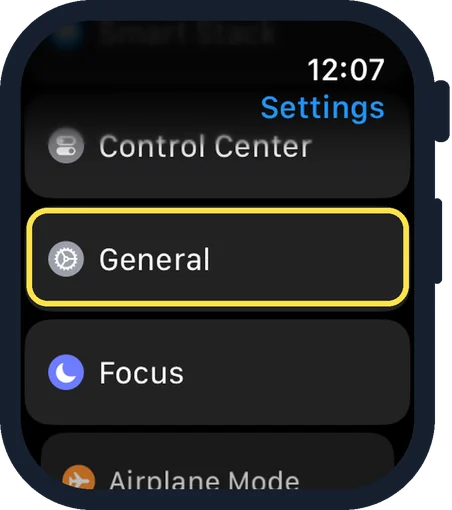
Update on the watch itself
If the watch is on Wi-Fi, open Settings on the watch, tap General, then Software Update, and tap Install.
Good to know
For the message Unable to Verify Update, check that the iPhone is connected to the internet, restart both devices and delete the update file as described above.
Do not force restart the watch while an update is being installed. If it shows the Apple logo with a progress wheel, leave it on the charger until it has finished.
The normal way to update is in how to update your Apple Watch.
In short: Charger and 50 percent, iPhone on Wi-Fi nearby, wait, restart both, delete the update file, remove beta profile, update on the watch.
- Apple Support: Update your Apple Watch
Rules and prices change. Check the official source before you act.